

Overview
In the admin: Workflows
A workflow is a sequence of steps TotalBase runs for you: read some records, create others, call a function, send an email, generate a PDF, call another system. You design it on a canvas in the admin, publish it, switch it on, and from then on it runs whenever its trigger fires.
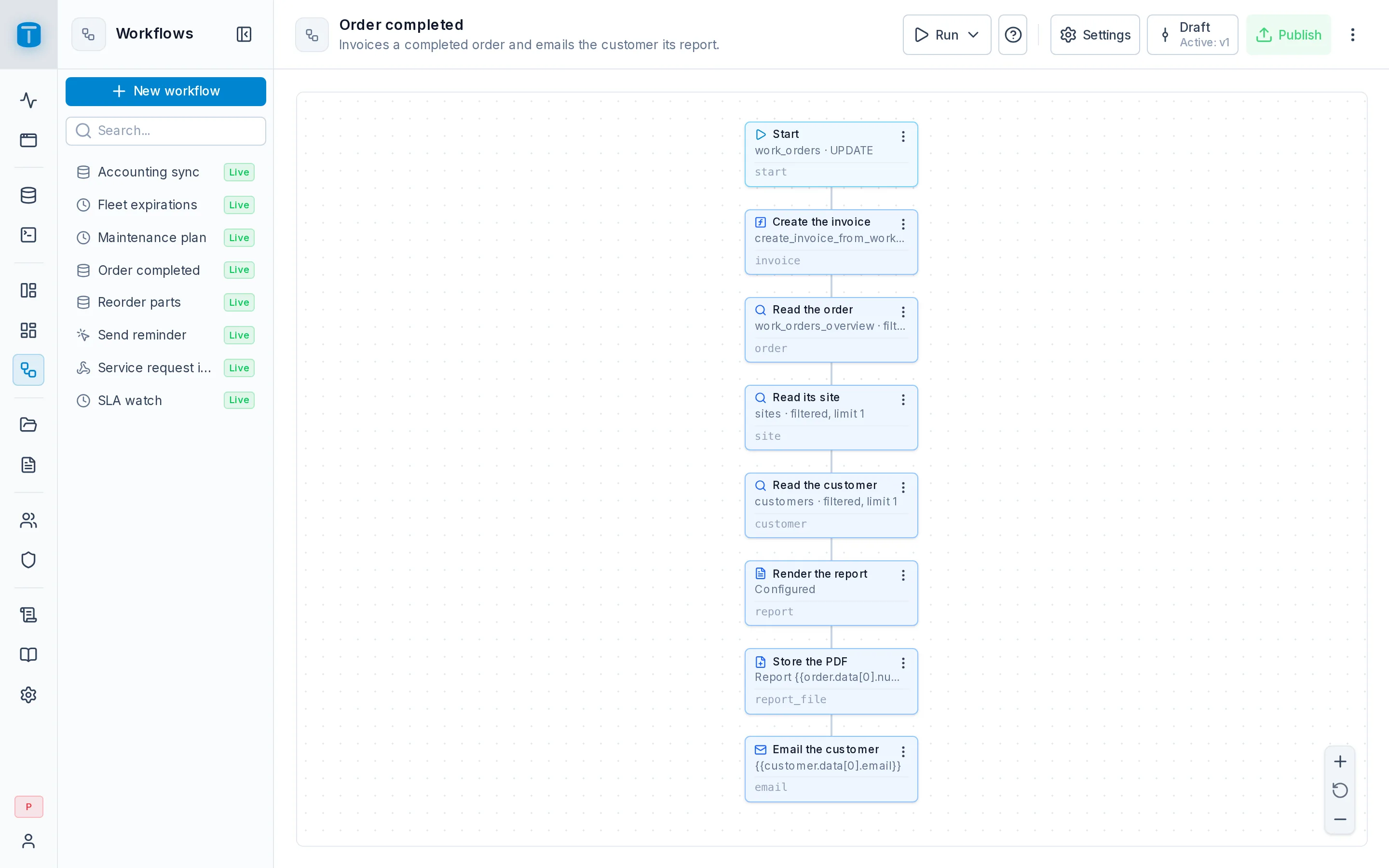
At Acme, when a technician closes a work order, the Order completed workflow creates the invoice, renders the work order as a PDF and emails it to the customer. Nobody presses a button: the status change is the trigger.
Trigger and steps
Every workflow has exactly one Start, which holds its trigger, and a tree of steps below it.
| Trigger | Runs when | At Acme |
|---|---|---|
| Manual | a person or a program asks: the editor, a DataView action, a page of the App, the API | Send reminder on selected customers |
| Database event | rows of a table are created, updated or deleted | Order completed, Reorder parts, Accounting sync |
| Schedule | a recurring time, written as a cron expression | SLA watch every 15 minutes, Fleet expirations daily at 07:00 |
| Webhook | another system calls the workflow's URL | Service request intake, from the website's form |
The steps come from a fixed catalog, grouped as in the editor: Data, Control, Code, Integration, Communication, Files, Documents and Composition. A step reads what the trigger and earlier steps produced through {{…}} values, such as {{start.data.id}}.
A run follows one path. Branches (Condition, Select case) pick one way; loops (For each item, Process in batches) go through their items one at a time. Nothing runs in parallel.
Draft, publish, enable
A workflow follows the same drafts and publishing model as DataViews and dashboards, with one more switch:
- Create it with the wizard: Creating a workflow. It starts as a draft with only its Start.
- Design it in the editor. Every change is saved to the draft. Test runs the draft for real, as you.
- Publish it. Publishing checks that every step is complete and creates a version.
- Enable it in Settings › General. Until then no trigger starts it.
| State | What can start a run |
|---|---|
| Never published | only a test run from the editor |
| Published, disabled | nothing but a test run |
| Published, enabled | its trigger, the editor's Run › Production, and the HTTP routes |
Production runs always use the live version. Editing the draft never changes what runs until you publish again, and a run already started keeps the version it started with.
Who a run acts as
Every run records two identities:
- the initiator: who or what started it, such as a user, an API token, the schedule, a webhook, a data event or another workflow;
- the executor: the user whose permissions every step uses.
A step that reads or writes records goes through the Data API as the executor: their permissions, row filters, field grants and payload checks apply, and PostgreSQL's constraints and triggers decide as for any other write. The executor's permissions are checked when each step runs, not when you designed it.
Which user is the executor depends on the trigger and on its Execute as setting:
| Started by | Executor |
|---|---|
| Test run from the editor | you |
| Manual (editor, DataView action, App, API) | its Execute as user if set, else whoever started it |
| Database event, Schedule | its Execute as user, always |
| Webhook, Public | its Execute as user |
| Webhook, Authenticated | its Execute as user if set, else the caller |
Nobody calling a workflow can choose or change its executor. Choosing an Execute as user is your decision as the author; it doesn't give callers that user's permissions anywhere else.
The Workflows system account
TotalBase includes a system user for automations, workflows@system.totalbase.internal, with the reserved Workflows role. It has full data access, can't sign in, and can't be deleted or deactivated, so an automation doesn't stop working when the person who built it leaves. The editor proposes it as Execute as for a database event. You can pick any active user instead, and a user with narrower permissions is often the safer choice.
Transactions and side effects
A workflow is not one transaction. Each record step is its own transaction, together with its audit entries and events; a later failure never undoes it. HTTP requests, emails and stored files happen outside any transaction and can't be taken back.
So:
- a failed run may have written records and sent emails before the step that failed;
- TotalBase never retries a failed step or run. Running it again is a new run;
- a test run is not a simulation: its writes, emails and requests are real.
Design for it: put checks first (Validate data, Condition), and send the email after the records it talks about exist.
Database events start runs only after the write commits. The event is stored with the write, in the same transaction, then handed to the workflows listening for it. A write that rolls back starts nothing. See Audit and events.
Who may start it
Starting a workflow on demand, from the App, a DataView action, the API or an authenticated webhook, needs the invoke grant: one of the caller's roles switched on in Settings › Security. Administrators always may. It's object access: it lets a role start the workflow and grants no data. What the run then does is decided by the executor's permissions.
Database events, schedules and public webhooks don't check it: they have no caller to check.
Designing, publishing, enabling workflows and reading their runs is for administrators only.
In the admin
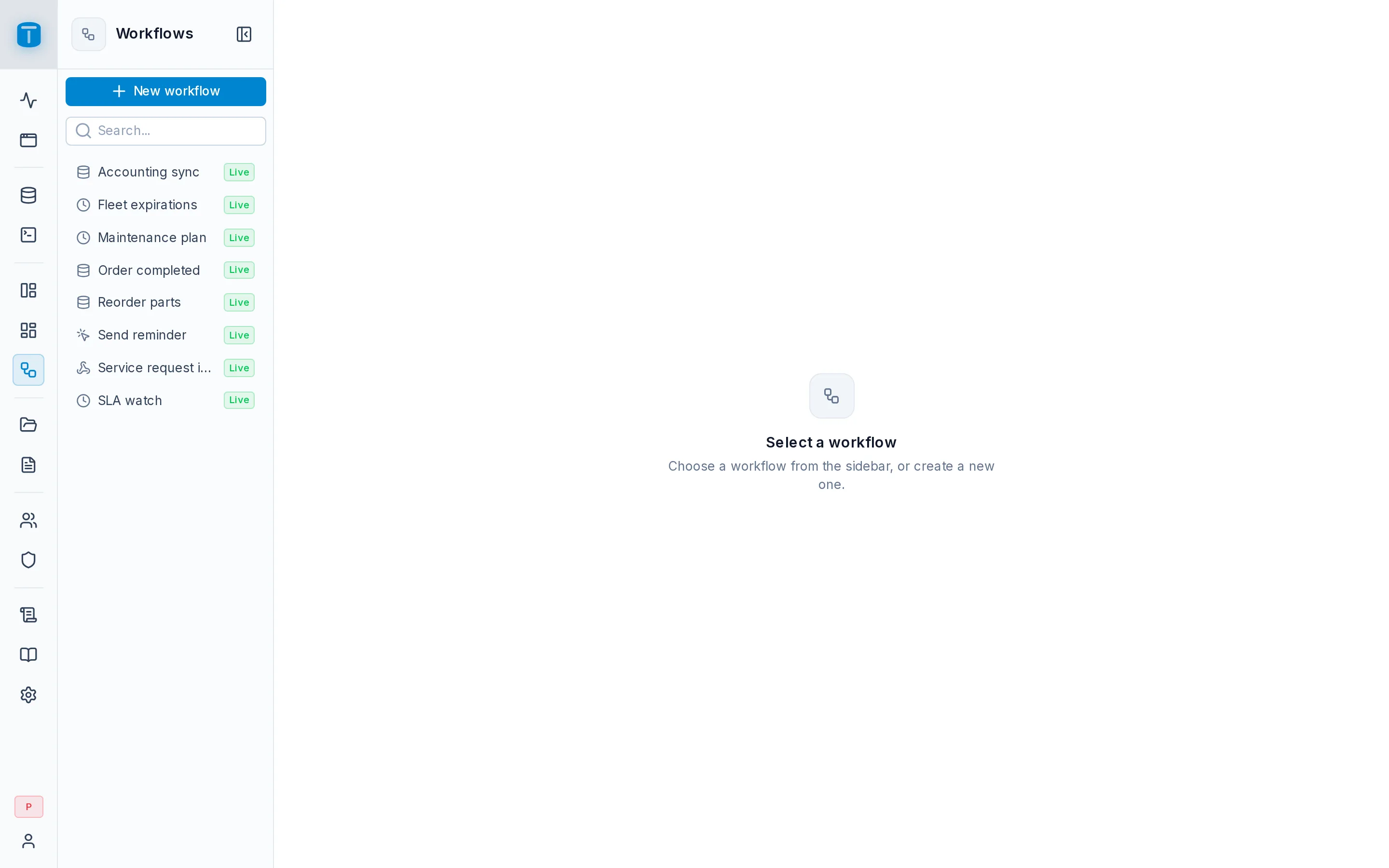
Workflows in the rail lists every workflow by name, with a search box and New workflow. Each row shows:
| Mark | Means |
|---|---|
| the trigger's icon | Manual, Database event, Schedule or Webhook; its name in a tooltip |
| Live | published, and the draft equals the live version |
| Changes | published, with unpublished changes in the draft |
| Draft | never published |
Clicking a workflow opens its editor. A disabled workflow says so in the editor's header, not in the list.
Agents build workflows the same way through the MCP server, with tools such as create_workflow, save_workflow, publish_workflow and set_workflow_enabled.
Next steps
- Creating a workflow: the wizard, step by step.
- The editor: steps, outputs, test runs and publishing.
- Audit and events: how a data change reaches a workflow.