

Form
In the admin: New DataView › Form · Settings › Form
A Form shows one record at a time, as a page. Use it when people work on one record, not a list: a technician closing the order in front of them, a data-entry screen, a company's own settings.
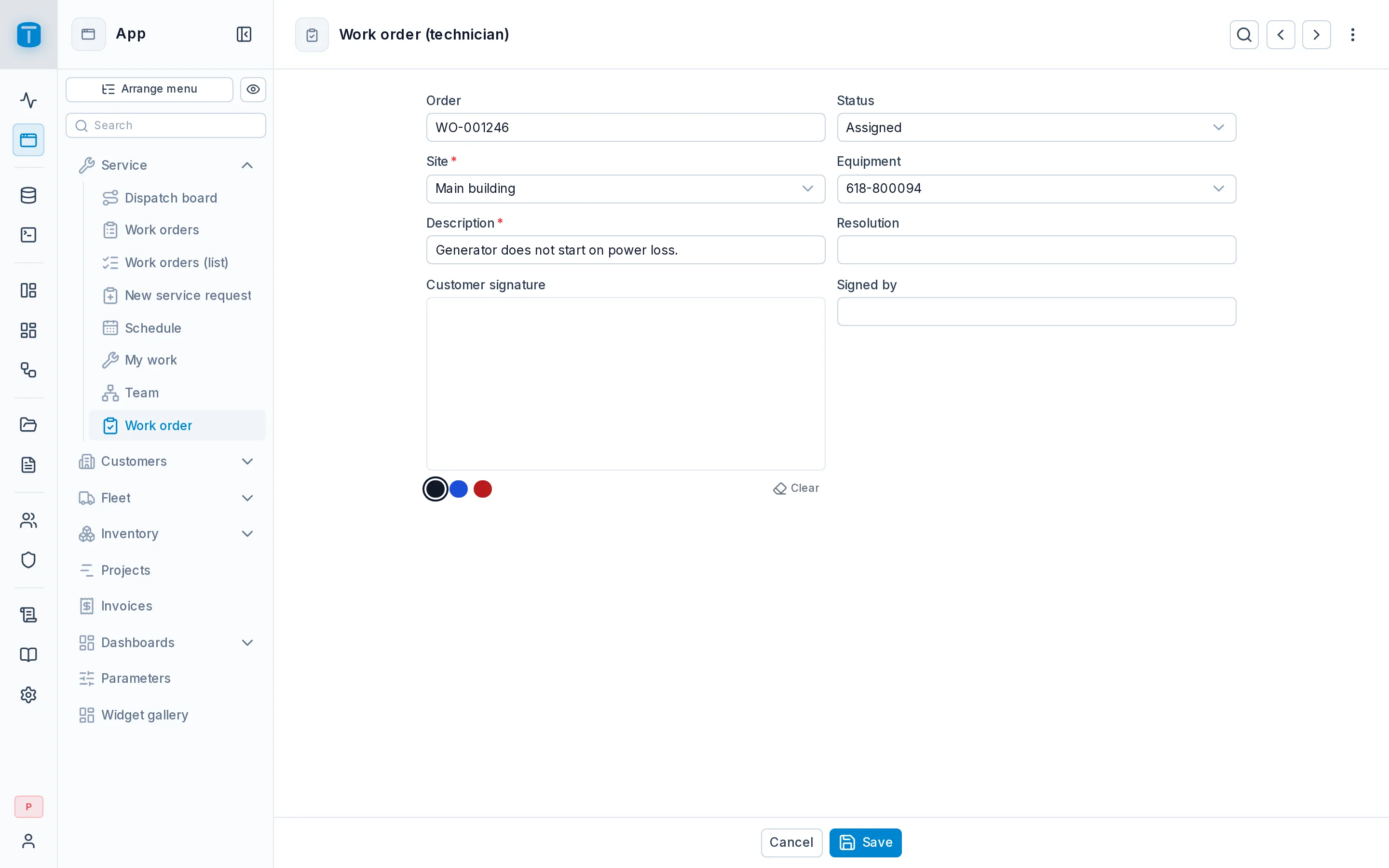
At Acme, Work order (technician) is a Form a technician uses on a phone: check in with the phone's location, take photos, add the parts used, get the customer's signature, and close the order.
What it needs
A table, or a view to show records read-only.
Modes
Mode, in Settings › Form, decides what the form is for:
| Mode | |
|---|---|
| Read | Opens a record read-only, with Edit and New where the user may. The default |
| Update | Opens the record ready to edit, without the read-only step |
| Create | Always a blank form for a new record. After saving, it starts another. No browsing or editing existing records: a data-entry screen |
| Single record | The table's one row, opened to edit, and created on the first save if there's none. No New, Search, browsing, Copy or Delete. For a table such as company_settings |
For Single record, publishing warns when the table has more than one row. To make PostgreSQL keep it to one, add a unique index on a constant: CREATE UNIQUE INDEX ON company_settings ((true)).
What users can do
The form opens the record in the address (?pk=), or else the first record by key.
- Search opens a sidebar to find a record by its key and first text fields.
- Previous and Next step through the records in key order.
- Edit, Save and Cancel, and the record's ⋮: Clone, Copy, Print, Activity, Delete.
Each of these can be turned off in Settings › Form.
The page
A Form is a page generated from the DataView's columns, which you can rearrange in the Design form: sections, tabs, a photo widget, a signature, a panel with the order's visits. Its fields stay bound to the table's columns, so a required column, a CHECK list's options and the user's field permissions are read live from PostgreSQL.
Next steps
- Master-detail: a record with its detail rows.
- Settings › Form: page width, actions.