

Creating a DataView
In the admin: DataViews › New DataView
New DataView opens a wizard. Its steps are the sections of the DataView's Settings, in the same order and with the same controls, so what you set while creating is where you'll find it when you come back to change it. Nothing is published when you finish: the DataView is a draft only administrators see.
This page builds Acme's Work orders kanban.
create_dataview with the type, the table, its columns and the layout, then publish_dataview with the roles that open it. See Recipes › A DataView.From a table, in one step
On a table's page (Database › Tables), Create DataView makes a screen of it in one window: its Name (the table's, humanized), Who opens it (the roles), and Publish now (on). Create makes a Table DataView over every column, grants the roles and publishes it, so it's in the App at once, and opens its Settings › Security. If a role still lacks something, such as READ on the table, the header's warnings say so with the fix. See Publishing › Warnings.
Everything stays editable in its Settings. More options… opens the wizard below instead, with the table already chosen.
The steps
Which steps you get depends on the type:
| Type | Steps |
|---|---|
| Table, Cards, Kanban, Calendar, Gantt, Map, Tree | Type → General → Data → Views → Form → Actions → Security |
| Form | Type → General → Data → Form → Actions → Security |
| Master-detail | Type → General → Master → Detail → Detail columns → Form → Actions → Security |
| Settings | Type → General → Data → Settings → Actions → Security |
| Custom | Type → General → Record → Security |
| External frame | Type → General → Frame → Security |
A step you've reached can be opened again from the rail on the left, so you can go back without losing what you entered. Next waits until the step is complete.
Type
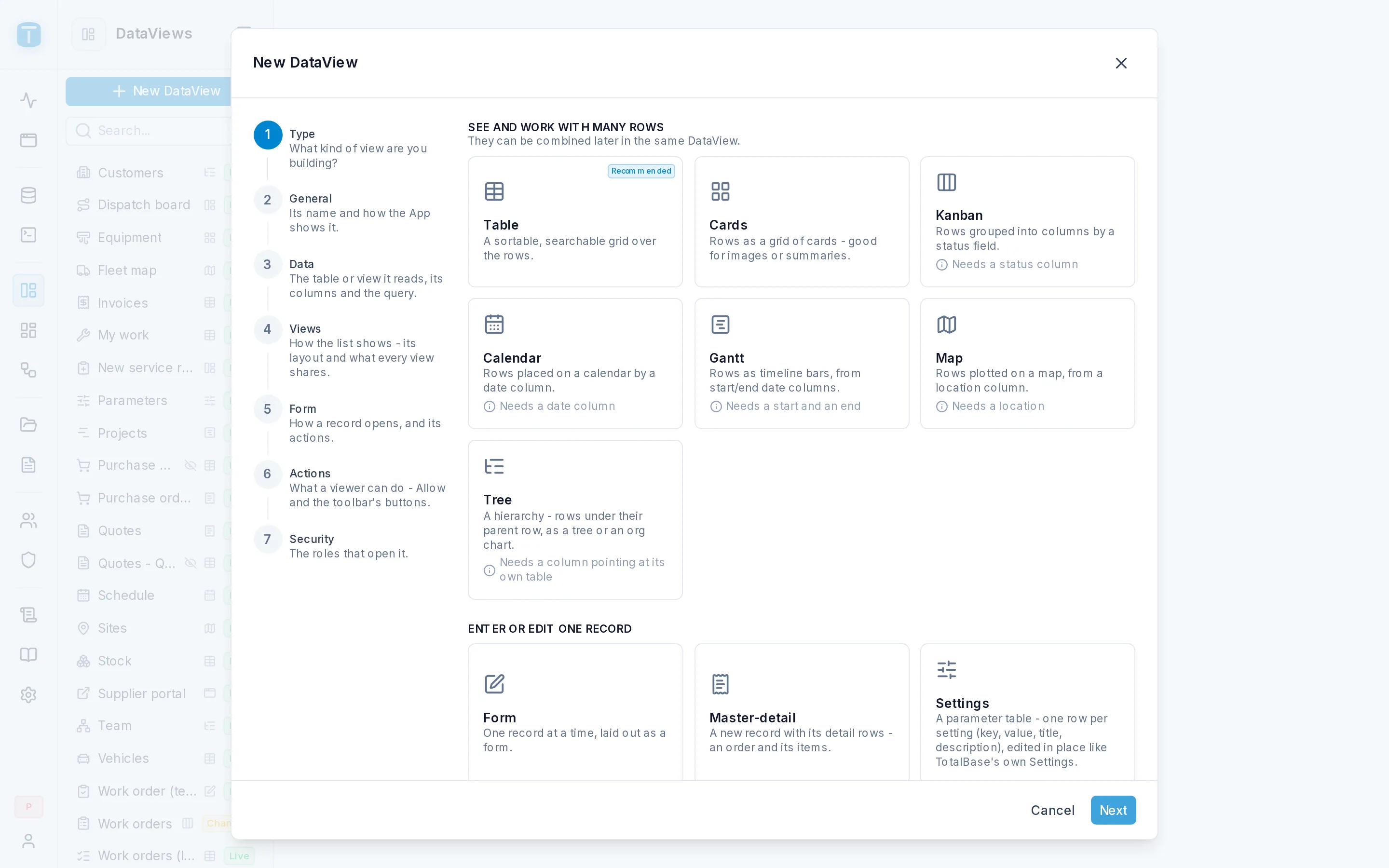
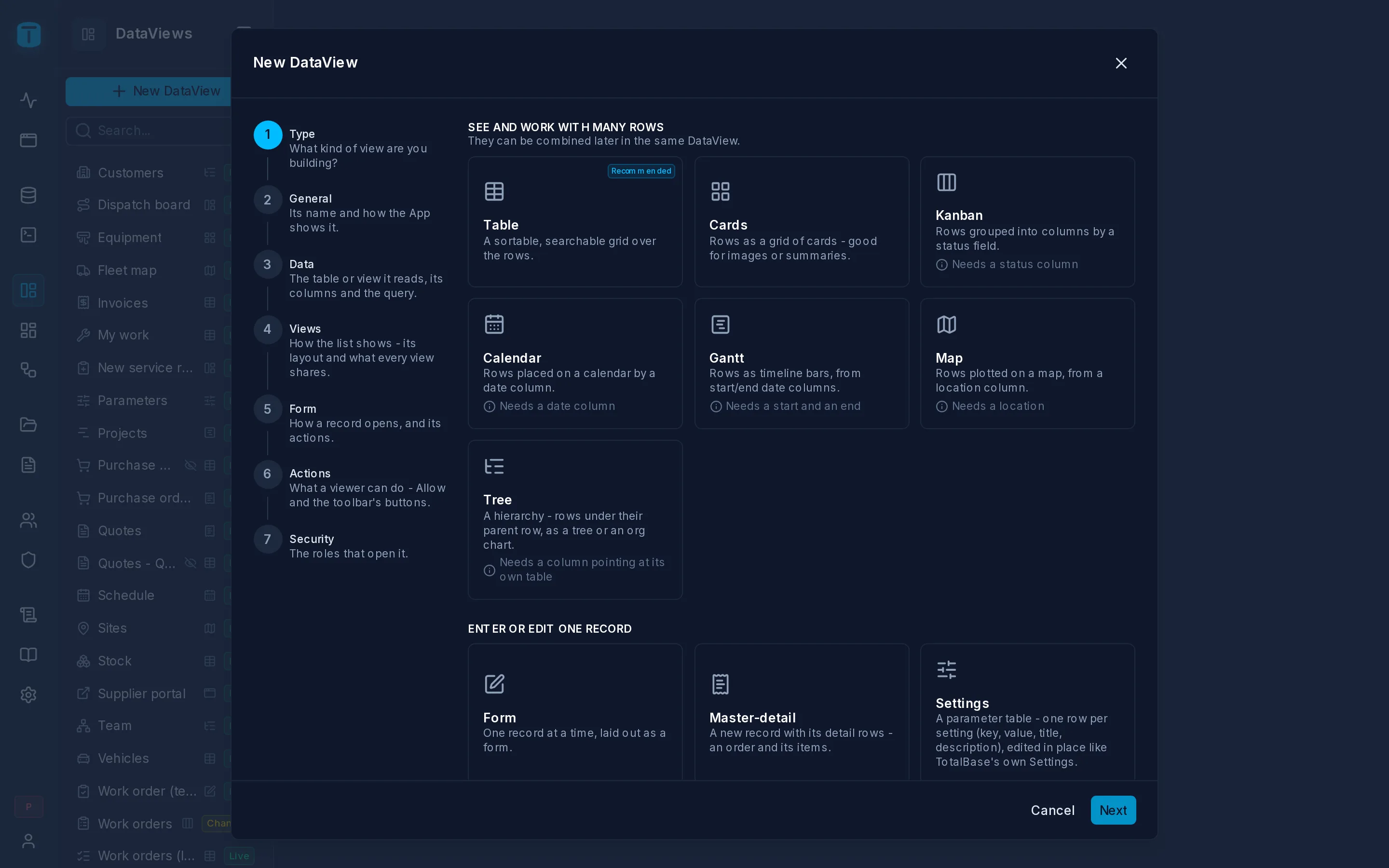
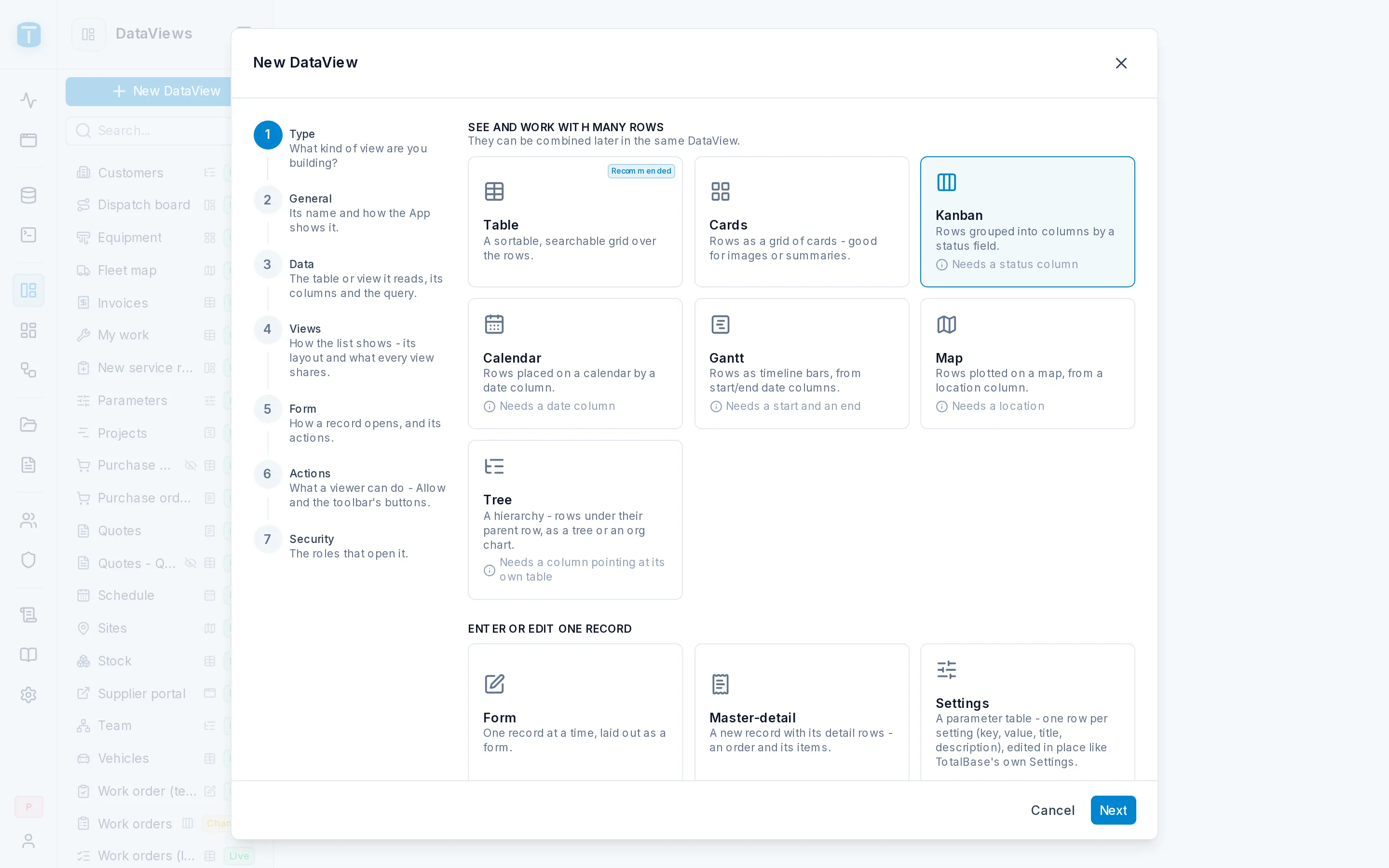
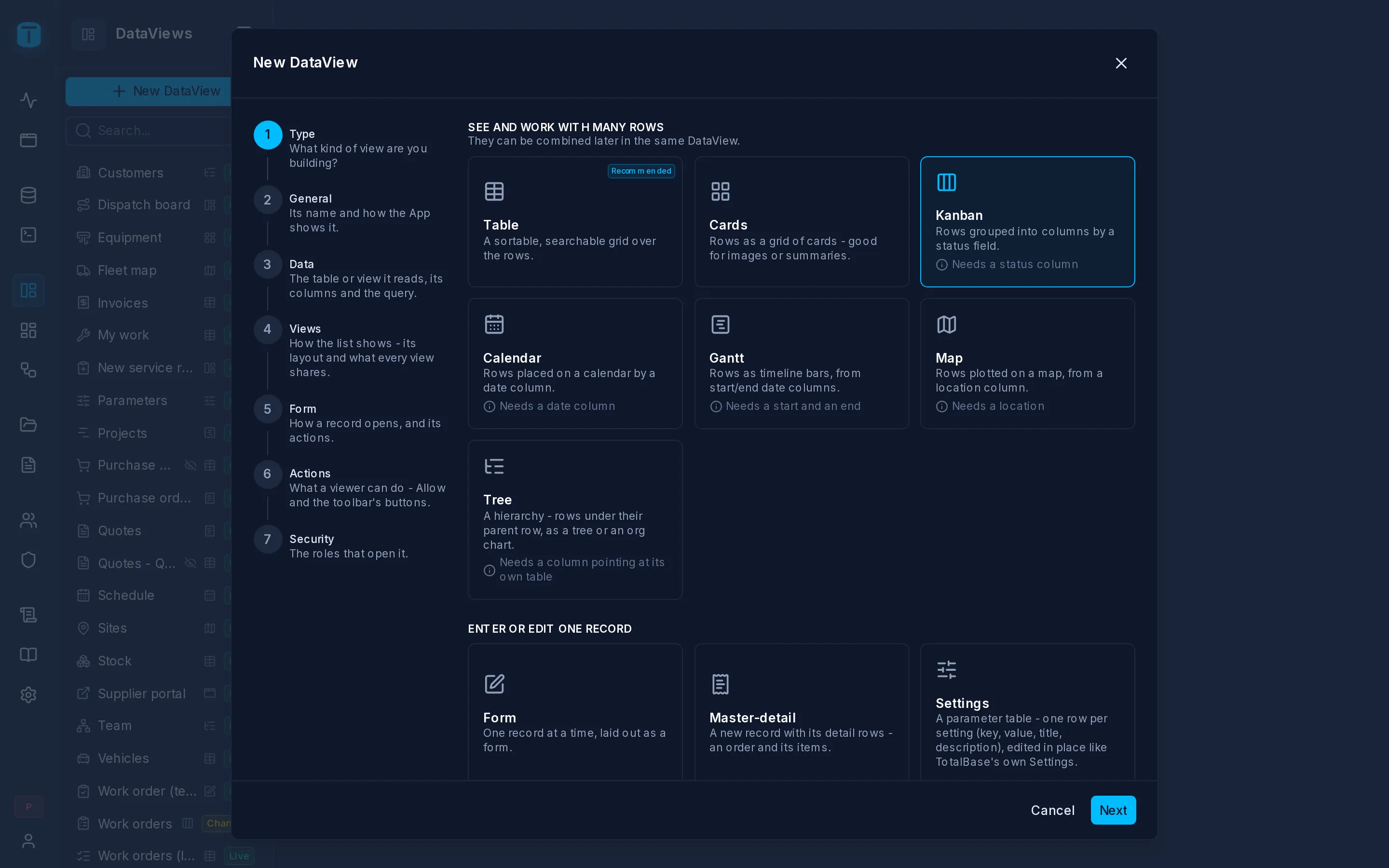
Pick what you're building. The types are grouped by purpose: See and work with many rows, Enter or edit one record, and Pages of your own. Table is marked Recommended.
A type that needs a particular column says so on its card: Calendar Needs a date column, Gantt Needs a start and an end, Map Needs a location, Kanban Needs a status column, Tree Needs a column pointing at its own table.
For Acme's board, pick Kanban. You can offer more views of the same rows later, such as a table and a calendar, in Settings › Views.
General
| Field | |
|---|---|
| Name | Required, up to 32 characters, unique. Work orders |
| Slug | Required, proposed from the name, unique. It's the DataView's address in the App: /admin/app/dataviews/work-orders |
| Description | Optional, up to 128 characters. Shown as a tooltip in the App menu |
| Icon, Color | Optional. Without an icon, the type's icon is used |
Data
Pick the source: a table or a view that is ACTIVE and exposed for GET. Master-detail and Custom need a table, because they write records. Functions are never a source.
Then the columns, one row each:
| Column | |
|---|---|
| Show | Whether the column is in the DataView. All are checked, except a uuid primary key and the audit columns PostgreSQL fills (created_at, updated_at, created_by, updated_by) |
| Label | The column's title, read-only here: it comes from the table's column presentation |
| Help text | Shown under the field in the record form |
| Widget | The control that edits it, proposed from the column's type and constraints |
The primary key is always read, because editing and deleting a row need it. Unchecked, it's only hidden.
Under the columns, Column set decides what happens to a column added to the table later: Auto-hide new columns (the default) adds it hidden, Auto-show new columns adds it visible, Lock to selected columns keeps it out.
Show records runs the query the DataView will make, with your permissions, so you see what it will read before you finish. A viewer's own permissions can narrow it further.
If the table looks like a parameter table (a key and a value column), the wizard suggests the Settings type.
Views
The main view's layout, with a select for each column it needs. Each type has its own; for a kanban:
| Field | |
|---|---|
| Group by | Required. A foreign key (a lane per row of the table it points at) or a column with a CHECK list (a lane per value) |
| Card title | Required. The card's headline |
| Card description, Card image | Optional |
Acme groups by status and titles each card with description. Each type's page describes its layout: see Types.
More options holds what every view shares: the density and page size a first-time viewer starts with, the toolbar's mode, the list's margin and the auto-refresh.
Form
How a row's record form opens from the list:
| Mode | |
|---|---|
| Sidebar | Beside the list, which stays in view. The default, and right for most forms |
| Modal | A centered dialog, for short forms |
| Drawer | From the bottom, covering most of the screen, for a heavy form |
| Page | Its own address, for long forms |
Past 8 visible columns in a Sidebar or a Modal, the wizard suggests a Page. Below, the record's actions: Clone, Save & New, Copy, Print, Activity. See Settings › Form.
Actions
Allow sets what viewers may do besides reading: Create, Edit, Delete. It can only take away what their permissions give, never add to it. A Closed orders history can have no New button while the same roles create orders in another DataView.
Then the toolbar's functions, on or off: search, saved views, activity, filter, import, export, refresh. See Settings › Actions.
Security
The roles that may open it. They're granted as soon as the DataView is created, but users only see it once it's published. Give the Work orders kanban to Dispatcher and Manager. See Settings › Security.
What the wizard creates
- The DataView, as a draft, with the columns you checked shown and the primary key hidden if you unchecked it.
- Its record form, generated from the same columns: one field per column, in one column for a Sidebar or a Modal, two per row past 8 fields in a Drawer or a Page. Each field gets the widget you chose. Over a view there is no record form: a DataView never writes to a view.
- Its default order, taken from the source's default order. From then on the order is the DataView's own.
- For a Master-detail, two DataViews: the master, and a detail DataView over the items table that lives inside it and is published with it. See Master-detail.
- For a Tree, optionally a trigger on the table that refuses a row placed under itself or one of its descendants (Protect against cycles). It applies to every writer, not only the DataView.
Only what differs from the defaults is stored, so a DataView keeps following the defaults you didn't touch.
Errors
| Code | When |
|---|---|
DATAVIEW_NAME_DUPLICATE, DATAVIEW_SLUG_DUPLICATE (409) | another DataView already has the name or the slug |
INVALID_DATAVIEW_COLOR (422) | a color that isn't one of the palette's |
DATAVIEW_SOURCE_TYPE_INVALID (422) | the source isn't a table or a view, isn't ACTIVE, or is a view for a type that writes |
DATAVIEW_FIELD_WIDGET_INVALID (422) | a widget that can't edit that column |
DATAVIEW_DETAIL_REQUIRED, DATAVIEW_DETAIL_INVALID (422) | a Master-detail without a detail table, or with one that has no foreign key to the master |
DATAVIEW_VIEW_CONFIG_INVALID (422) | a layout that doesn't fit the source, such as a Settings DataView without its four columns |
See Errors.
Without the wizard
The wizard sends one request, POST /admin/api/dataviews, with the name, the type, the source, the chosen columns and the configuration. Agents use the MCP tool create_dataview, which takes the same, and then publish_dataview with the roles that open it. See Admin API.
Next steps
- Publishing: put it in front of users.
- Settings › Data: change its columns afterwards.