

Security
In the admin: DataViews › a DataView › Settings › Security
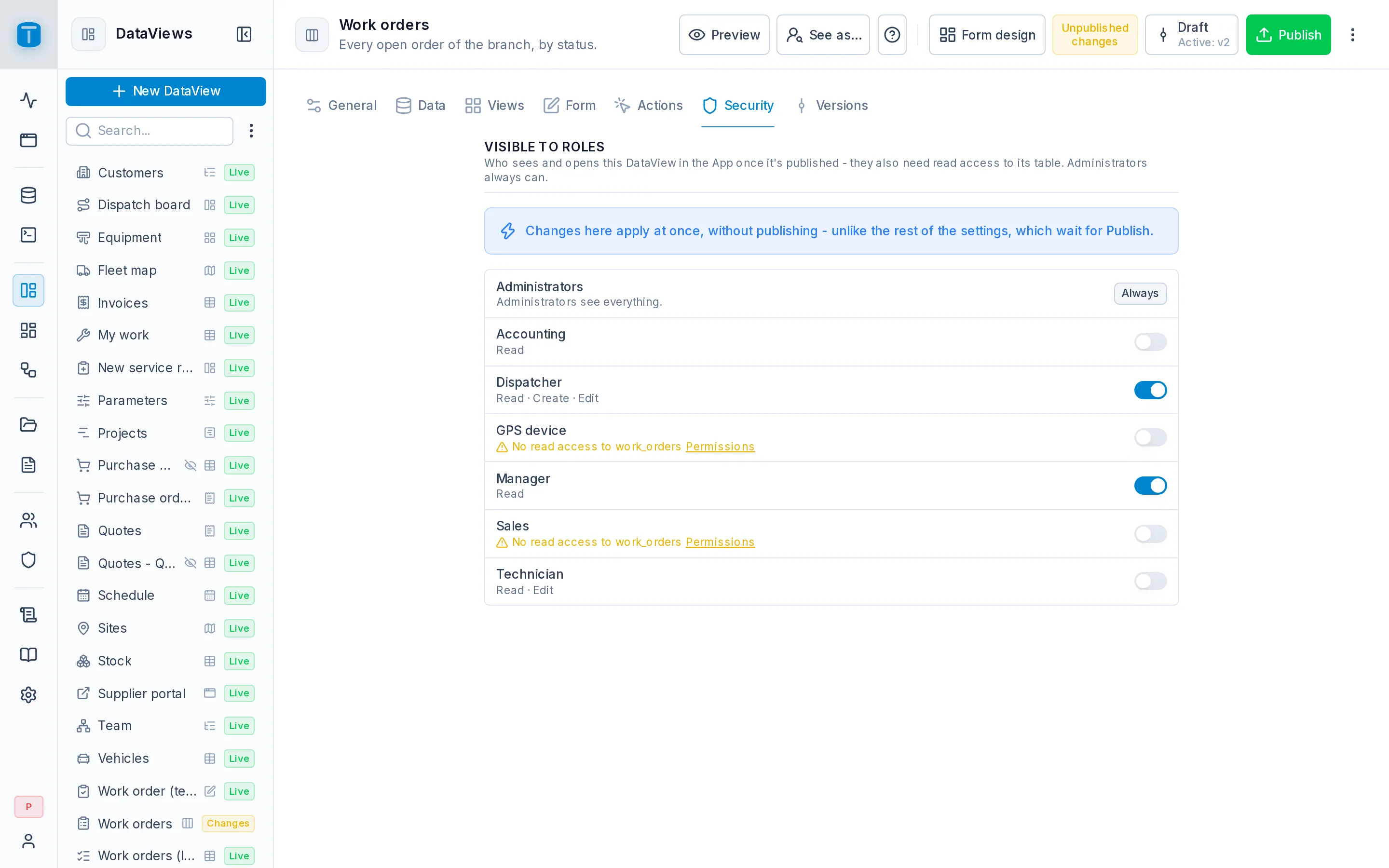
Security lists the roles, each with a switch: the roles switched on may open the DataView in the App. Changes apply at once, without publishing; what those roles then see is the live version.
The list
- Administrators are always on: they open every DataView.
- Each role says what it may do in the DataView over its table: Read · Create · Edit · Delete, from its permissions. What Allow takes away is marked: Delete: taken by Allow, linking to Actions.
- A role that can't read the source is warned, with a link to its permissions. Switching it on isn't enough: it wouldn't see the DataView.
- Inactive roles are dimmed.
- Past ten roles, a search with All and None.
A new DataView has no roles, so only administrators see it until you switch some on.
Two levels
Opening a DataView and reading its data are two separate decisions:
| Decides | Set in | |
|---|---|---|
| Object access | which roles may open the DataView | here |
| Data permissions | which rows and fields those roles may read and change | Roles › a role › Permissions |
A user sees the DataView in their App when both hold: one of their roles is switched on here, and they may read its source. Then every row it shows and every change it makes still goes through their permissions: a Salta dispatcher opening Work orders sees only Salta's orders, because of the row filter on work_orders.
A DataView a user may not open answers as if it didn't exist, so users can't find out which DataViews there are.
An External frame or a Custom page without a record table has no source: switching a role on is all it needs.
Embedded DataViews
A DataView shown inside another, such as the Visits panel inside a work order's form, opens for whoever can open the form it's in. The detail of a Master-detail lives inside its master and has no roles of its own. Its rows still go through each user's permissions.
What this isn't
Switching a role off removes the DataView from that role's App. It doesn't stop the role from reading the table through the API or another DataView. To keep data from a role, change its permissions.
Next steps
- Object access: the same model for dashboards and workflows.
- Publishing: where the DataView appears.