

General
In the admin: Dashboards › a Dashboard › Settings › General
Settings, in the editor's header, opens the dashboard's settings. Its sections run along the top, each with its own address: General, Variables, Data, Share, Security and Versions.
The header keeps the save status, Dashboard design to go back to the canvas, the Unpublished badge and Publish. Each section says whether its changes apply at once or on Publish: only the Variables wait for Publish.
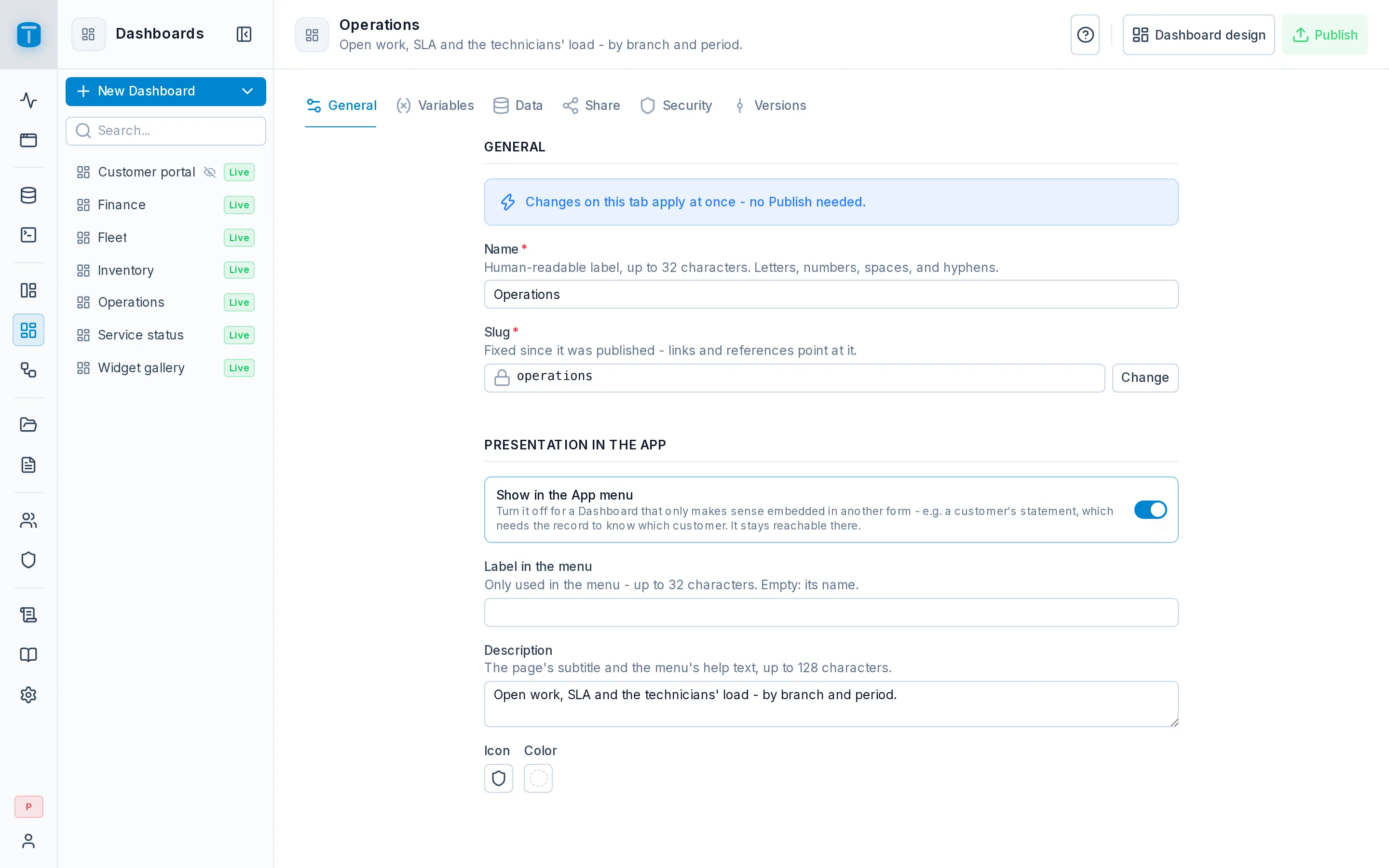
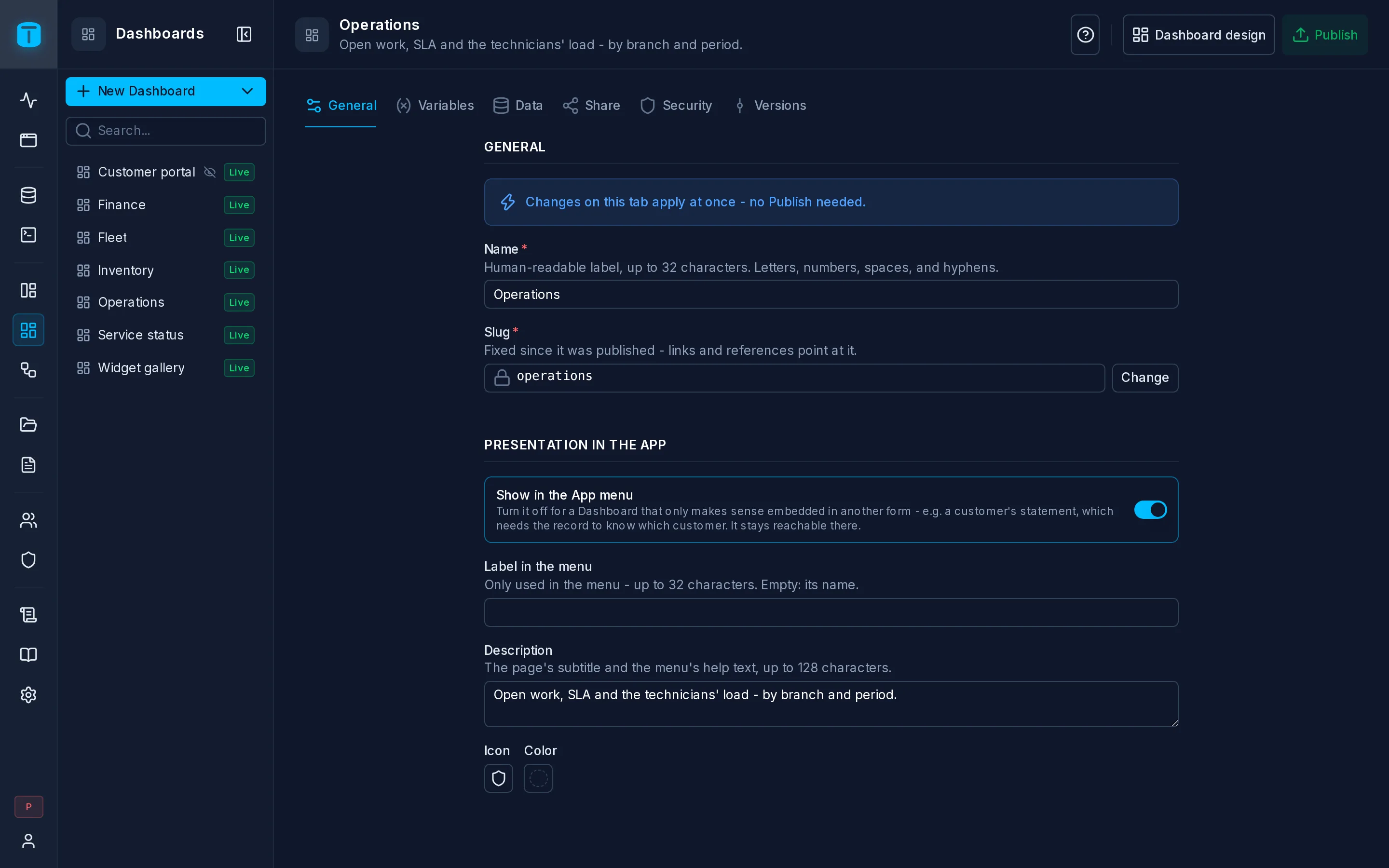
General
Changes here apply at once, without publishing, and are saved as you type.
| Field | |
|---|---|
| Name | Required, up to 32 characters, unique. The dashboard's name in the admin and, unless it has a label, in the App menu |
| Slug | Its address in the App: /admin/app/dashboards/operations. Proposed from the name until you edit it |
Once the dashboard is published, the slug is locked: links and bookmarks reach it by it. Change unlocks it after a warning, and Change it anyway confirms: everything that used the old address stops working.
Presentation in the App
How the App shows it. Like the name, these fields aren't part of a version.
| Field | |
|---|---|
| Show in the App menu | On by default. Turn it off for a dashboard that only makes sense inside a DataView page, such as a customer's statement that needs the record to know which customer. It keeps working there, and opens by its link for whoever is granted it |
| Label in the menu | Optional, up to 32 characters. A shorter name for the menu. Empty, the menu shows the name |
| Description | Optional, up to 128 characters. The page's subtitle in the App, and the menu entry's help |
| Icon, Color | Optional. The menu entry's icon and color, also used in the admin's list |
The App menu is shared with DataViews, and administrators arrange it in the App itself. See Arrange menu.