

Arrange menu
In the admin: App › Arrange menu
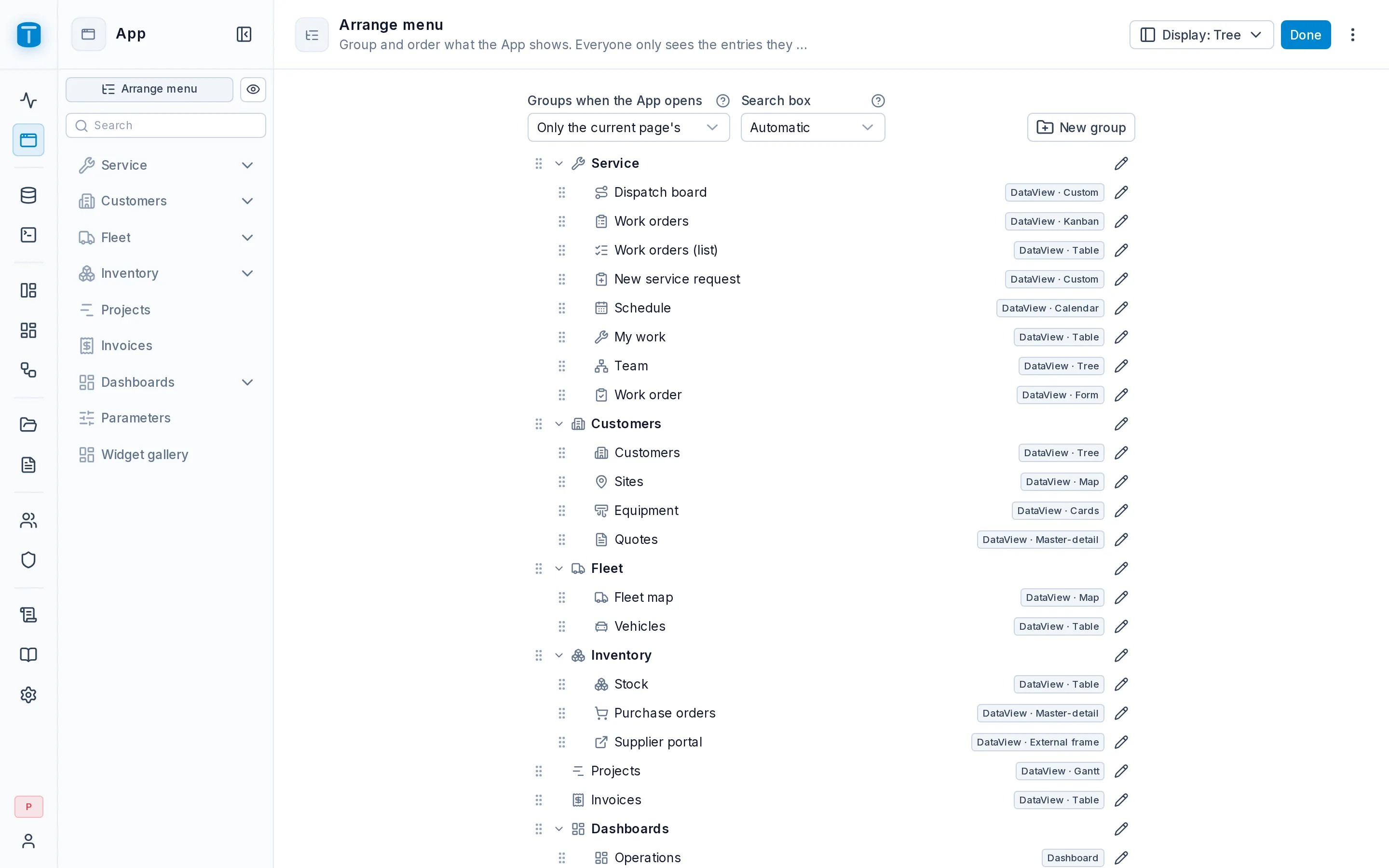
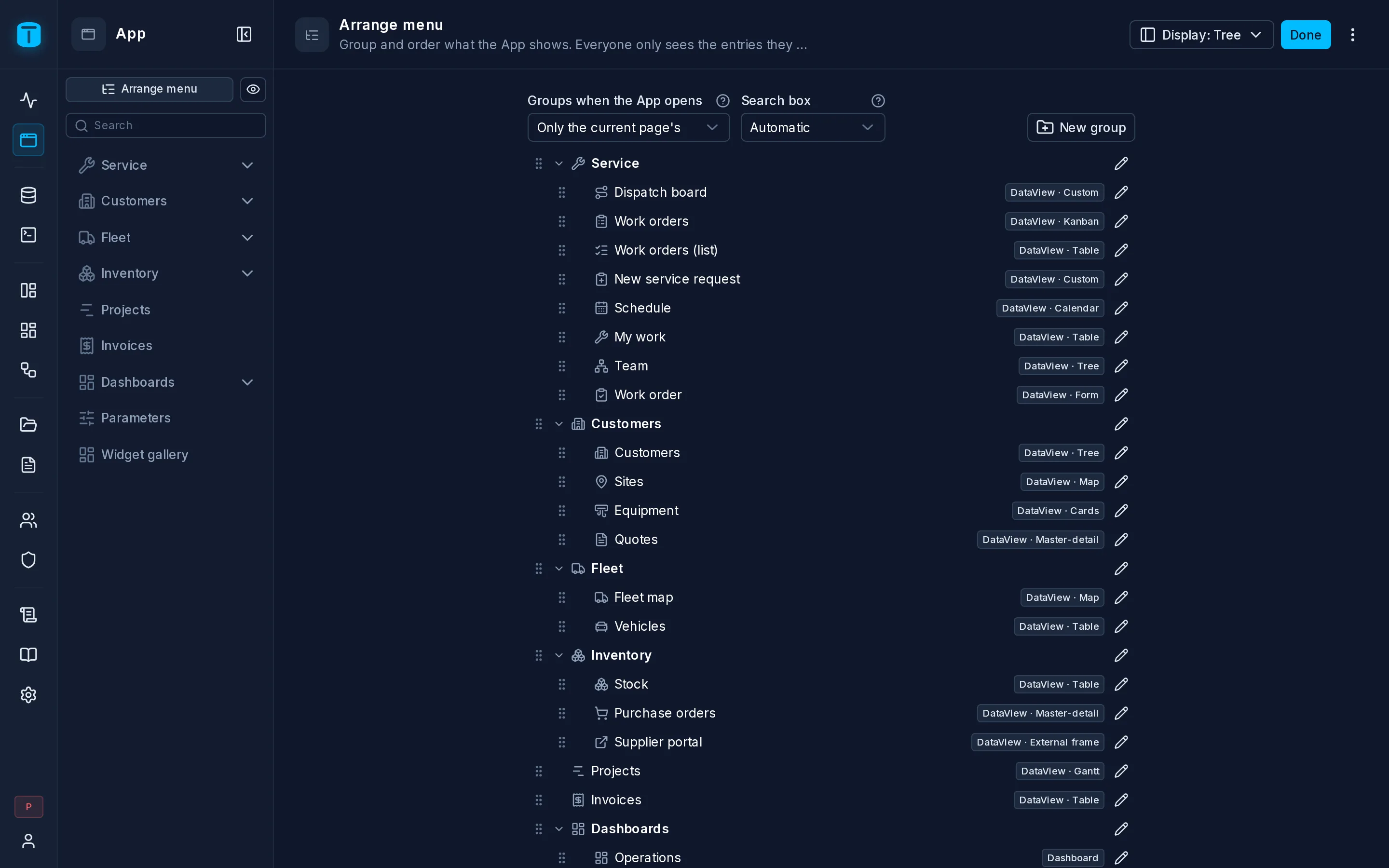
Administrators arrange the menu in the App itself. Arrange menu, at the top of the App's menu, turns it into an editor for everyone's menu.
Where a new entry lands
The first time you publish a DataView or a dashboard, it's added at the end of the menu. From there you move it into place.
Groups and entries
- New group adds a group. A group can hold a subgroup.
- Drag entries and groups to reorder them or move them between groups.
- Edit on a group renames it and sets its icon and an Open icon, shown while the group is open. Deleting a group moves its entries up a level; nothing is deleted.
- Edit on an entry sets its Label in the menu (up to 32 characters; empty uses its name), its description (shown on hover) and its icon and color. These are the DataView's or dashboard's own fields and apply at once.
- The editor's ⋮ sorts the whole menu by name or by type, A → Z or Z → A.
How the menu behaves
| Option | Values |
|---|---|
| Display | Tree: collapsible groups (the default). Sidebar: the same menu flat, each group a heading |
| Groups when the App opens | Only the current page's (the default), All open, All closed. A group's own When the App opens overrides it |
| Search box | Automatic: once a user sees more than 15 entries (the default). Always, Never |
Done leaves the editor; every change is already saved.
Out of the menu
Some DataViews only make sense inside another, such as a customer's statement embedded in the customer's form. Turn off Show in the App menu in its Settings › General, or use Remove from the menu on its entry.
It disappears from the menu but keeps working where it's embedded, and anyone granted it can still open it by its link. The editor lists these under Hidden, each with Show to bring it back. It hides; it doesn't grant or deny.