

The App
In the admin: App
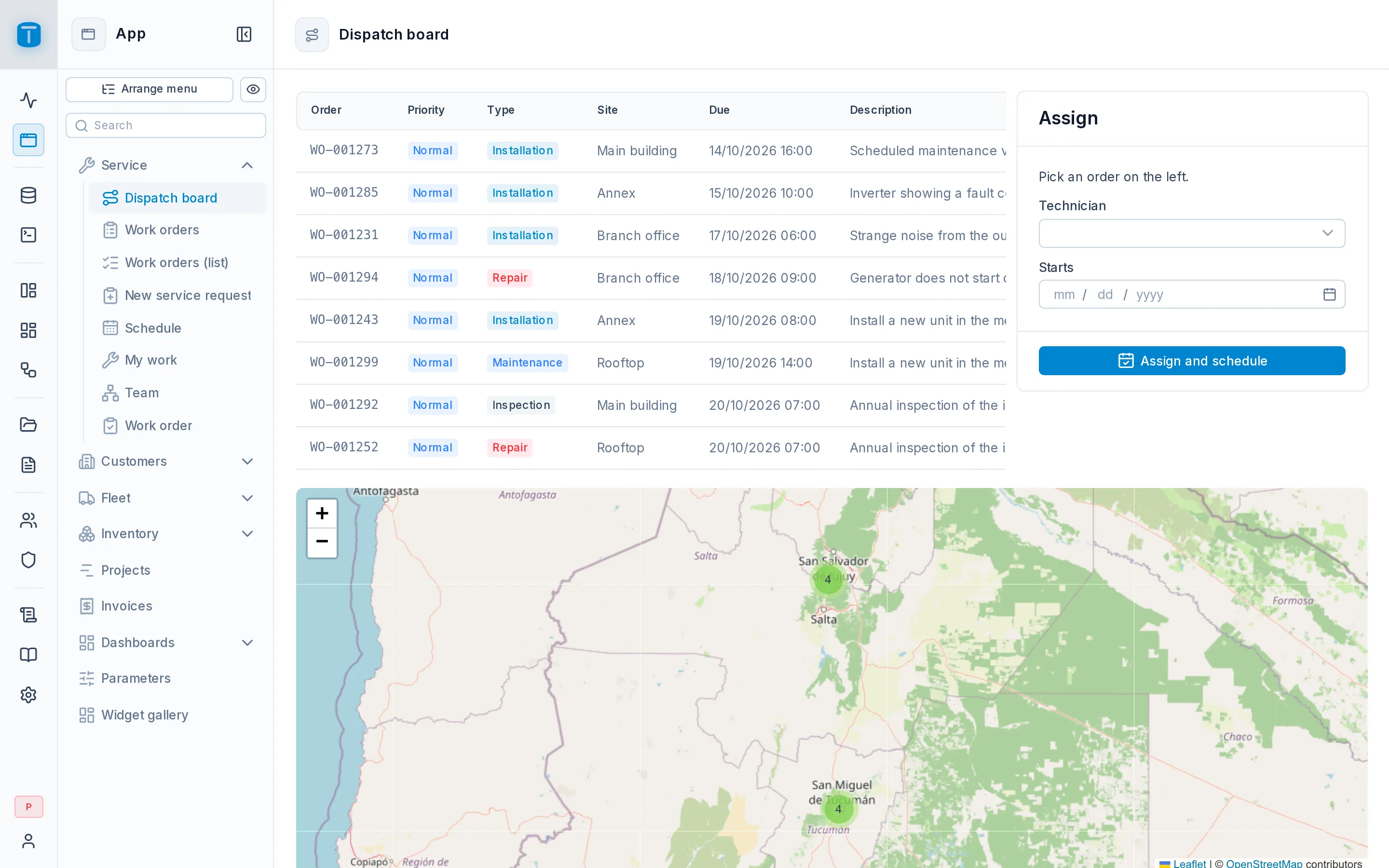
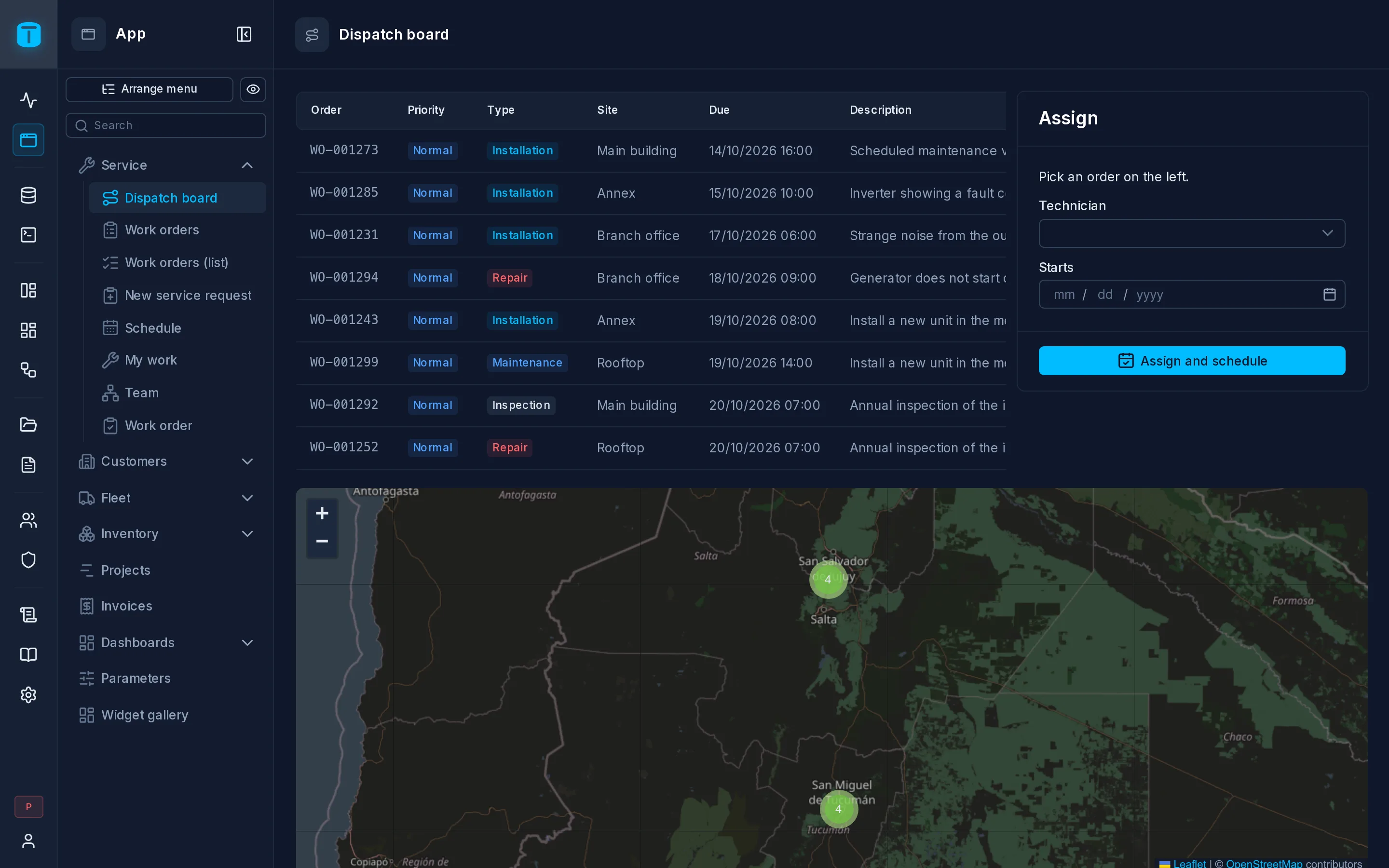
The App is where people work. It's the second entry of the admin's rail and, for a user who only works in the App, the only one: the DataViews and dashboards you publish, in one menu that you arrange.
Who sees what
Each user sees only the entries they may open: a published DataView or dashboard granted to one of their roles, in its Security settings. A group with nothing for them is hidden, so a technician's App is short and a manager's is long, from the same menu.
The menu decides where things are; it never grants anything. Taking an entry out of the menu hides it but doesn't take its access away, and an entry nobody is granted shows to administrators only.
Moving around
- Groups open and close with a click. Which ones a user opened or closed is remembered on their device; Reset menu groups puts them back as the administrator arranged it.
- Search filters the menu by name. It shows when the menu is long, and
/brings it from any screen. - On a phone or a tablet, the menu folds into the header's ☰ and the screen takes the whole width. Every DataView and dashboard works there too.
Where the App opens
When a user opens the App, it shows:
- the screen they last visited in this browser, if they can still see it;
- otherwise, their role's App home, set in the role's General section;
- otherwise, the first entry of the menu.
Acme sets My work as the Technician role's home and the Work orders kanban as the Dispatcher's.
Next steps
- Arrange menu: groups, order, labels and icons.
- Publishing: how a DataView reaches the App.
- DataViews in the App and dashboards in the App.
See as
To check what someone gets, click the eye beside Arrange menu (or See as… in a published DataView's header) and pick a user or a role. The App opens as they see it: their menu, their rows and their buttons.
- A user brings their own rows: a row filter such as "my orders" shows theirs.
- A role shows what its permissions allow, with you as the user: rows filtered by the user show yours.
Nothing is saved while you look. A banner above the page says whose App you see; Stop takes you back. Each preview is recorded in Logs.