

Versions
In the admin: DataViews › a DataView › Settings › Versions
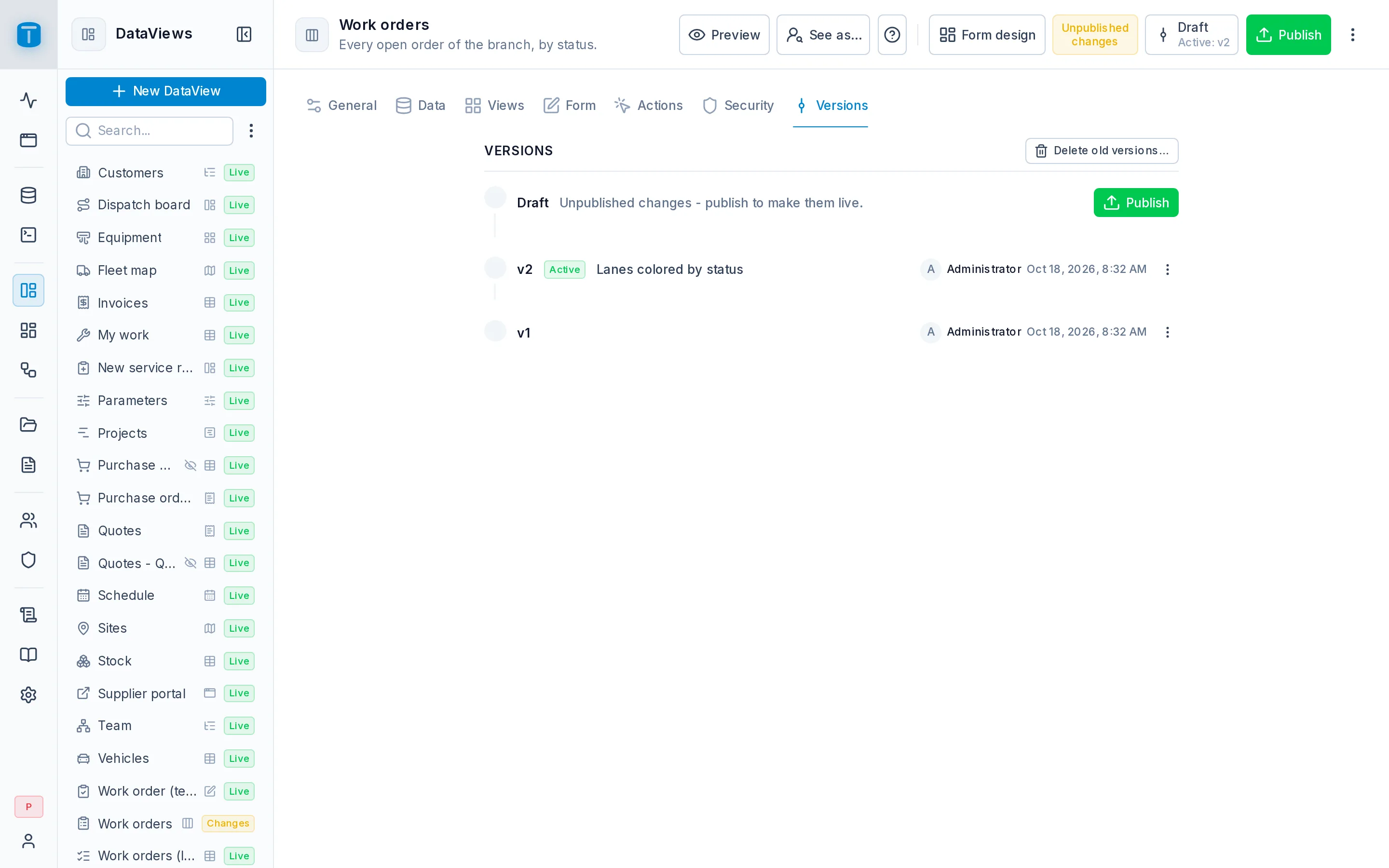
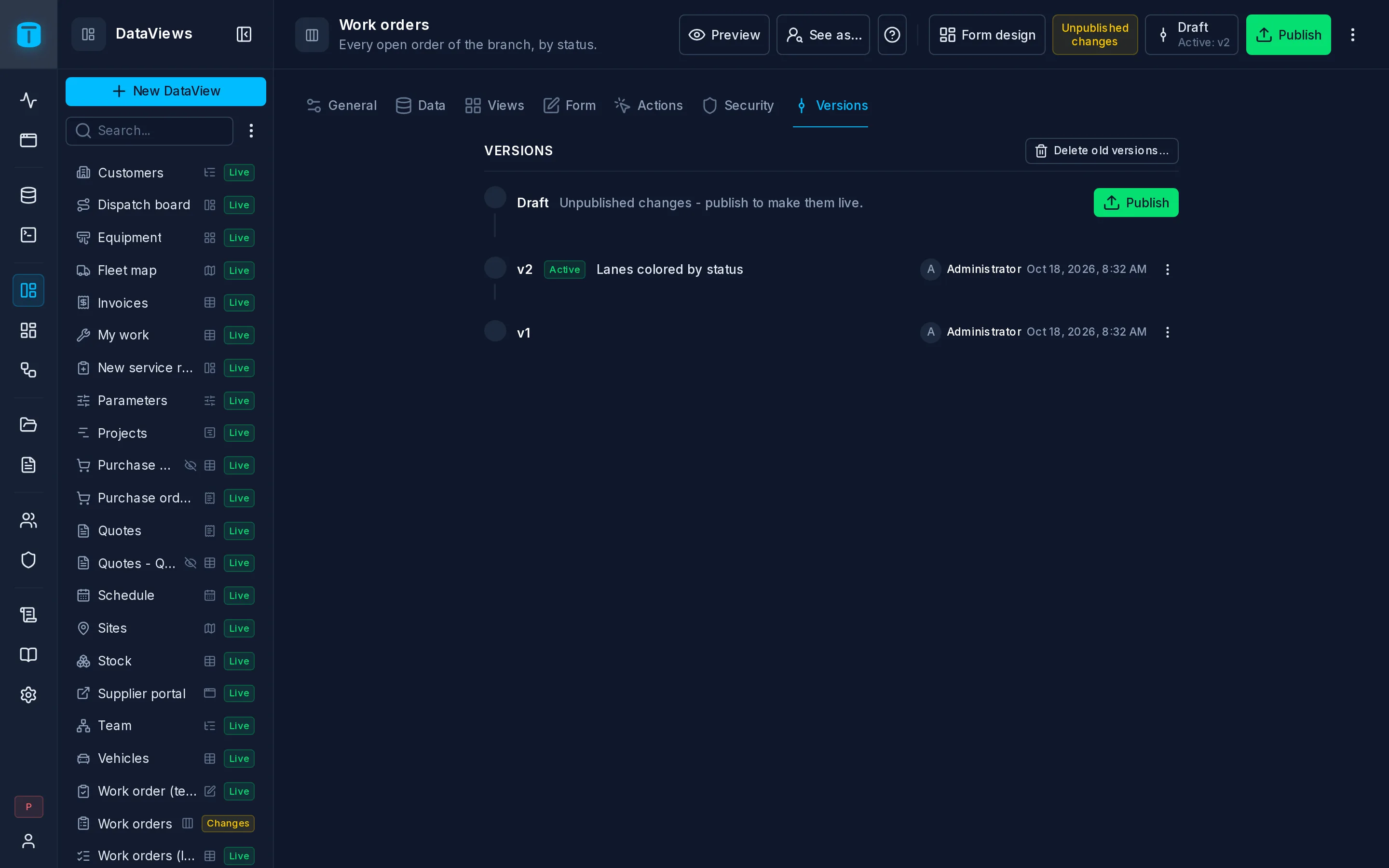
Versions is the DataView's history: the draft you edit, at the top, and every version you published, newest first, each with who published it, when, and its note. The live version, the one users see, is the highest.
The same history opens from the Versions menu in the header.
The draft
The draft says whether it has Unpublished changes or equals the live version. With changes, Publish creates the next version. See Publishing.
What you can do with a version
| Action | |
|---|---|
| Open | Shows the DataView as that version was, read-only. Back to draft returns |
| Restore | Replaces the draft with that version. Nothing is published: users keep seeing the live version until you publish, which creates a new version marked restored from v2 |
| Save as… | Creates a new, unpublished DataView from that version, with its own draft and no versions. The original doesn't change, and the copy's roles start empty |
| Delete old versions… | Removes every version below the one you choose. The live version always stays. A deleted version can't be opened or restored |
History only moves forward: restoring an old version and publishing it creates a new number, so the live version is always the latest.
What isn't versioned
Some settings apply at once and aren't part of any version: the name, the presentation in the App and the roles that open it. Restoring a version doesn't change them.
Next steps
- Drafts and publishing: the same model for dashboards and workflows.