

Overview
In the admin: Files
TotalBase stores your application's files: equipment photos, a customer's signature on a work order, PDF attachments, avatars, the logo of the sign-in page. Each file's details (name, type, size, who uploaded it) are a row in totalbase.files; its content is kept on disk.
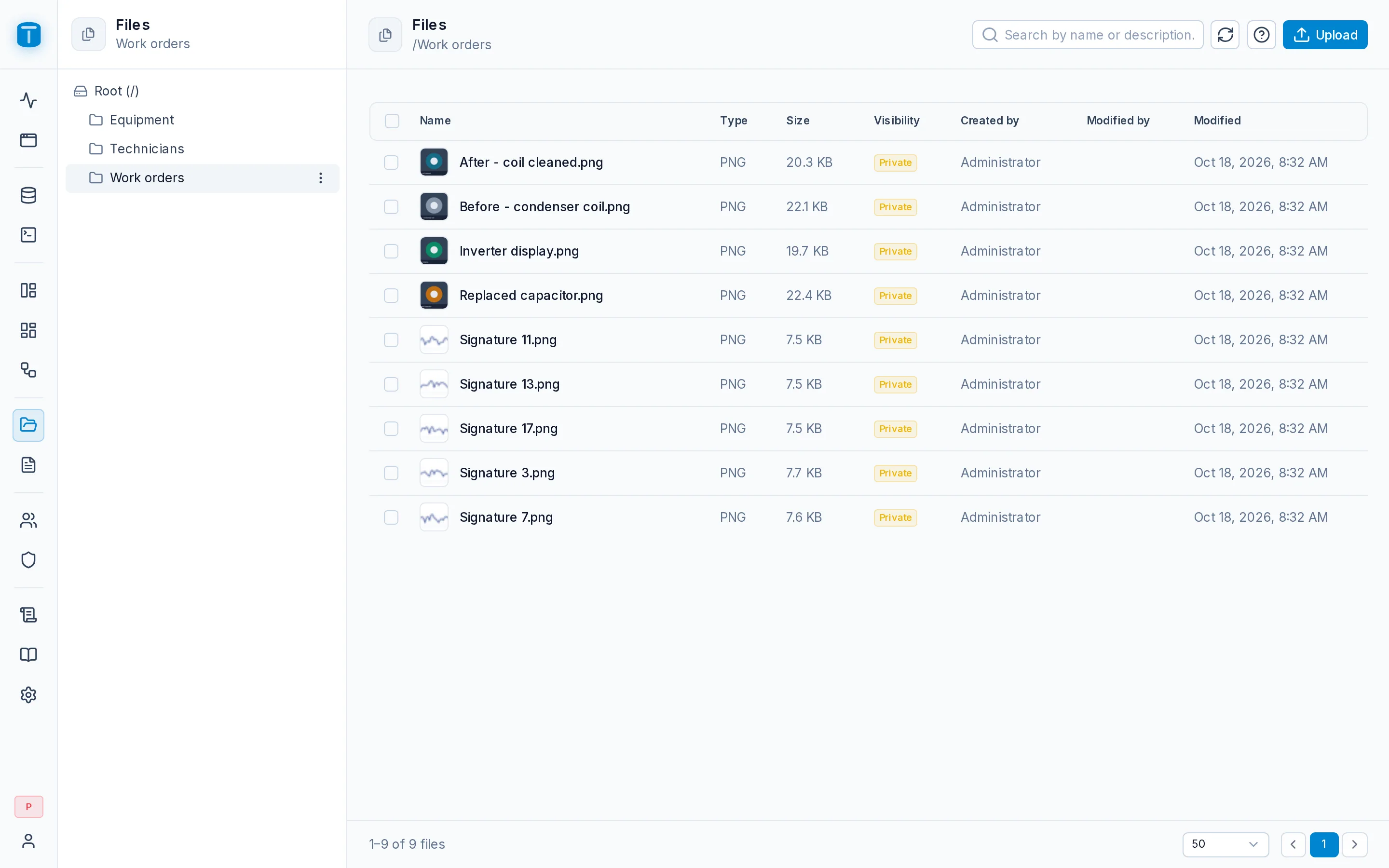
Files in the rail is the explorer: folders on the left, the files of the selected folder in a table, and a sidebar with a file's details.
Folders
The tree starts at Root (/). Each folder's menu has New (a subfolder), Upload File (into that folder), Rename and Delete, each shown only to users with that permission - on files for Upload File, on folders for the rest. A folder name is up to 32 characters, can't contain /, and is unique inside its parent.
Folders only organize: they aren't paths on disk, and moving a file between folders doesn't move its content. A folder that still holds files, directly or in a subfolder, can't be deleted: move or delete its files first.
The list
| Column | |
|---|---|
| Name | a thumbnail for an image, an icon otherwise, with the description under it |
| Type | the extension |
| Size | |
| Visibility | Public or Private; click to change it |
| Created by, Modified by, Modified |
Click a row to open its details. The search box looks for files in the current folder by name and description. Pages hold 25, 50 (the default), 100 or 200 files.
Several files at once
Select files to act on them together:
| Action | |
|---|---|
| Visibility › Make public / Make private | |
| Tags | Add to existing tags or Replace existing tags on every selected file |
| Move to folder… | |
| Delete | Deletes the files and their content, after you tick Confirm. It can't be undone |
The selection covers the current page. If some files fail, the selection is kept so you can retry.
Where files are used
- Columns of your tables: a photo, a file or a signature column holds a file's id. See Using files in tables.
- DataView forms: the File upload, Camera and Signature widgets. See Widgets.
- Workflows: steps that read and create files, and generate PDFs. See Steps › Files.
- Avatars go to an
Avatarsfolder; the logo and the sign-in background in Settings › Appearance must be public images.