

Uploading
In the admin: Files › Upload
Upload, in the header, opens a window where you drop files or click to browse. Several files at once are uploaded one by one into the folder you're in. A folder's menu in the tree has Upload File too, which opens the same window for that folder.
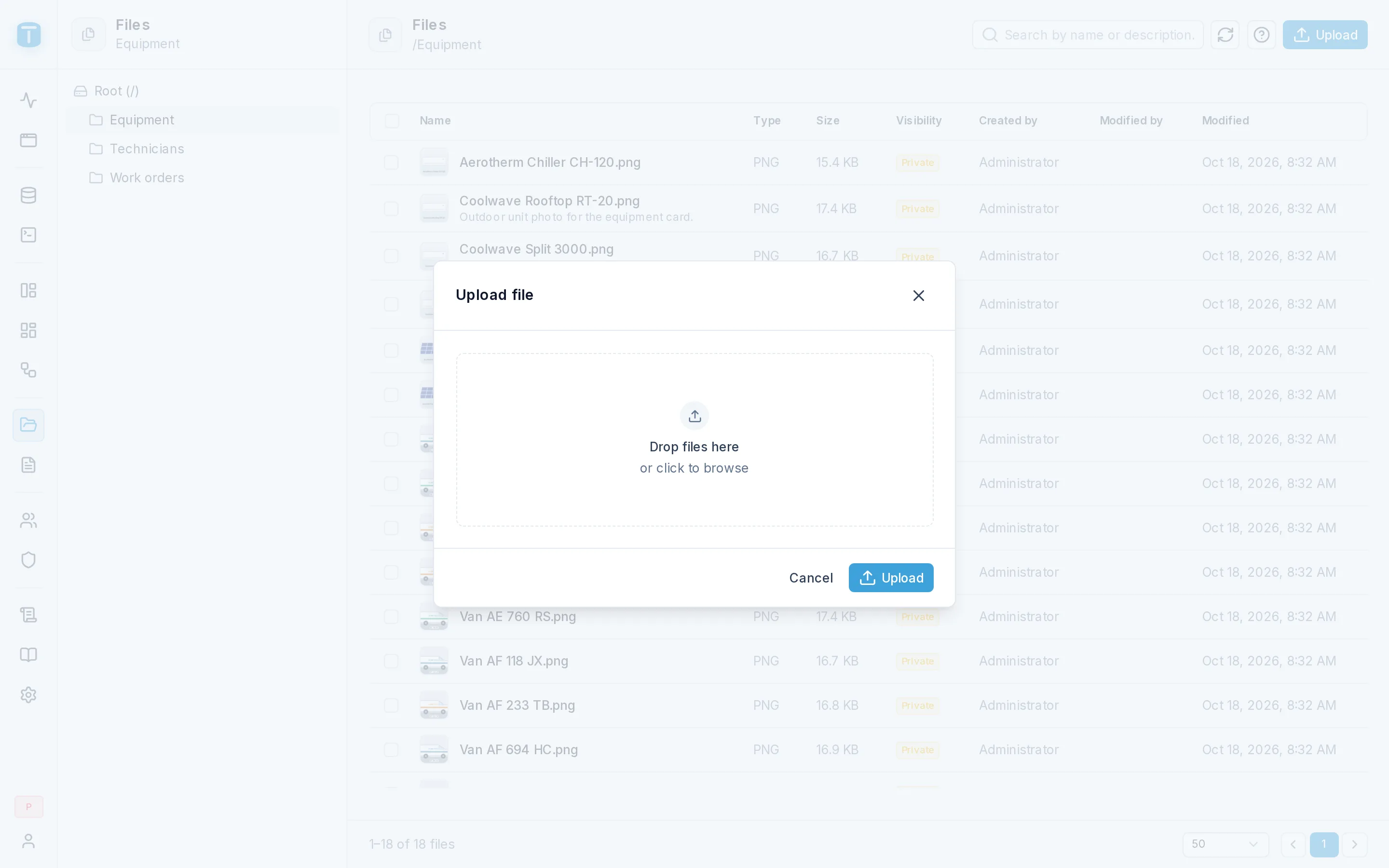
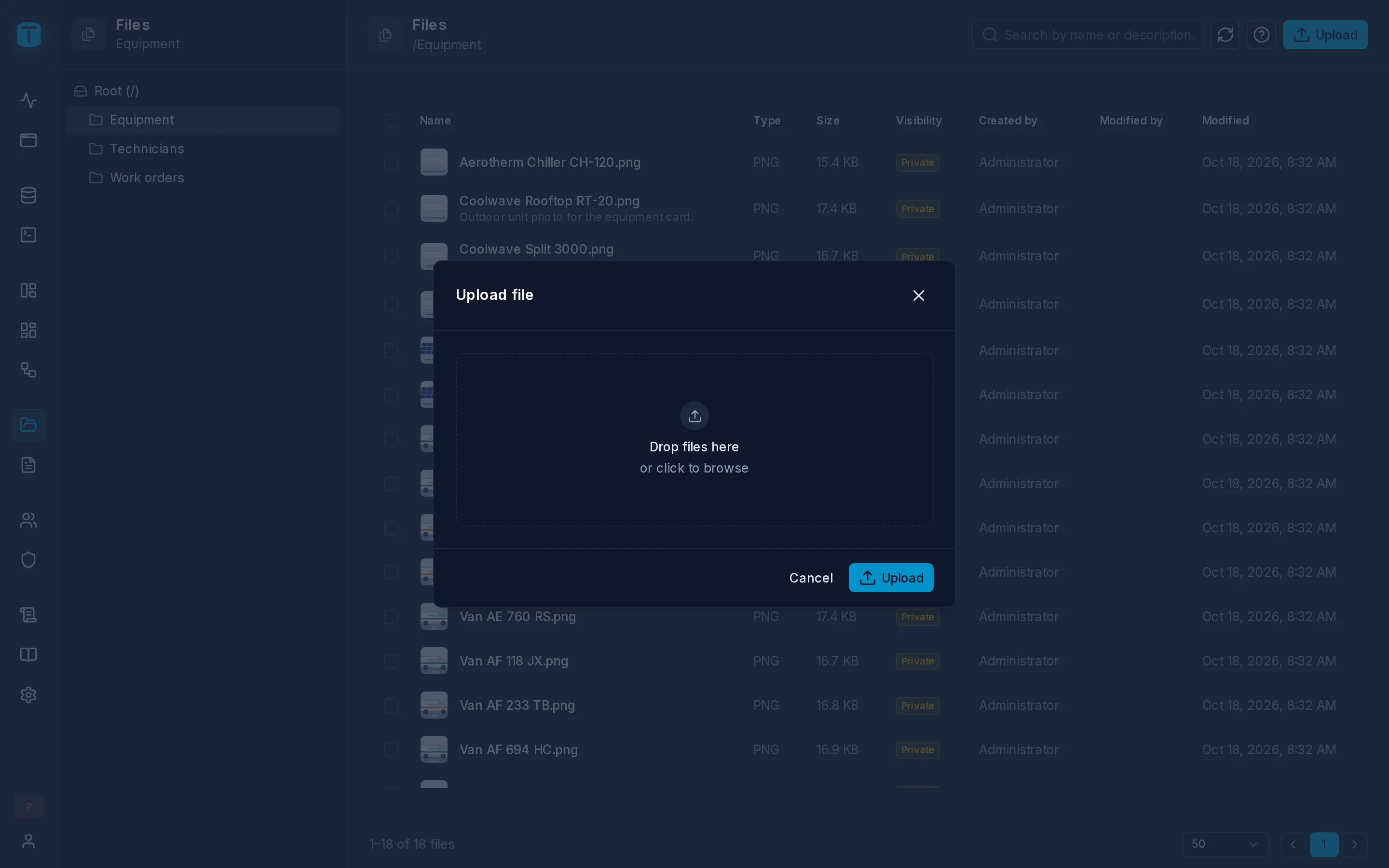
An upload from the admin sets no description or tags: add them afterwards in the file's details. Its visibility is the instance's default, Public by default in Settings › Features › Files, off unless you change it.
What TotalBase checks
In this order:
| Check | Error |
|---|---|
| Files are enabled (Enable Files) | 403 FILE_ACCESS_DENIED |
| The file isn't empty | 400 FILE_UPLOAD_REQUIRED |
| It's no larger than Maximum file size (10 MB by default) | 413 FILE_TOO_LARGE |
Its type is among Allowed file types (text/*, image/*, application/pdf, application/json, application/zip by default) | 400 FILE_MIME_TYPE_NOT_ALLOWED |
The type of a PNG, JPEG, GIF, WebP or PDF is read from the content itself, so a renamed file can't pass as another. Other types take the type the browser declares.
The user also needs CREATE on files: see Who can see a file.
Through the API
curl -s -X POST https://acme.example/api/totalbase/table/files \
  -H "Authorization: Bearer $TOKEN" \
  -F file=@compressor.jpg \
  -F folder=8c1f…  \
  -F visibility=PRIVATE \
  -F description='Compressor after repair' \
  -F tags=hvac,repair
Only file is required. The answer is 201 with the file's details, including its id, which is what you store in a file column.
Next steps
- Using files in tables.
- Settings › Features › Files: limits and types.