

Access
In the admin: Settings › Access
Settings › Access groups these pages of the admin: Authentication, Providers, Tokens.
Authentication
Settings › Access › Authentication
Authentication sets how people get an account and sign in: registration, sessions, passwords, the links TotalBase emails, and the notices it sends.
Accounts & sessions
| Setting | Key | Default | Range | |
|---|---|---|---|---|
| Allow self-registration | auth.registration_enabled | off | Anyone can create an account (POST /api/auth/register) instead of needing an invitation | |
| Default role for self-registration | auth.registration_default_role | none | The role every self-registered account gets. Not a reserved or administrative role. Without one, a new account has no access | |
| Require email verification | auth.email_verification_required | on | A new account can't sign in until its email is verified. Needs SMTP | |
| Minimum password length | auth.password_min_length | 12 | 8-128 | |
| Session lifetime | auth.session_ttl_hours | 720 h (30 days) | ≥ 1 | |
| Password reset link lifetime | auth.password_reset_ttl_minutes | 15 min | ≥ 1 | |
| Email verification link lifetime | auth.email_verification_ttl_hours | 24 h | ≥ 1 | |
| Invitation lifetime | auth.invitation_ttl_hours | 168 h (7 days) | ≥ 1 | |
| Maximum sessions per user | auth.max_sessions_per_user | 20 | ≥ 1 | Devices signed in at once |
| Keep ended sessions | auth.session_retention_days | 30 days | 0-3650 | Revoked and expired sessions stay listed, then are deleted. 0: forever |
Sign-in protection
| Setting | Key | Default | Range | |
|---|---|---|---|---|
| Lock after failed sign-ins | auth.lockout_max_attempts | 5 | 0-100 | 0: off. The answer stays the generic Invalid email or password |
| Lockout duration | auth.lockout_duration_minutes | 15 min | 1-10080 | A password reset or an administrator's Unlock account ends it sooner |
Email links
Where the links in invitation, reset and verification emails point. By default, TotalBase's own pages; point them at your own application if it handles these steps itself.
| Setting | Key | Default |
|---|---|---|
| Invitation link | auth.links.invitation | {{public_url}}/admin/auth/accept-invitation?token={{token}} |
| Password reset link | auth.links.password_reset | {{public_url}}/admin/auth/reset-password?token={{token}} |
| Email verification link | auth.links.email_verification | {{public_url}}/admin/auth/verify-email?token={{token}} |
A link must be an absolute http(s) URL containing {{token}}, and may use only {{public_url}} and {{token}}. Your page then calls the matching authentication route with the token.
Notices
| Setting | Key | Default | |
|---|---|---|---|
| Password changed notice | auth.password_changed_email_enabled | on | A security notice to the account's owner |
| Email changed notice | auth.email_changed_email_enabled | on | Sent to the previous address |
| Welcome email | auth.welcome_email_enabled | off | Sent once an account is ready to use |
The emails themselves are edited in Templates › System.
Access review
| Setting | Key | Default | Range | |
|---|---|---|---|---|
| Access review interval | auth.access_review_interval_days | 90 days | 0-3650 | How often the Administrators role's members should be reviewed. 0: off. See Access reviews |
Providers
Settings › Access › Providers
Besides passwords, your applications can sign users in with Google, GitHub or any OpenID Connect provider: Microsoft Entra ID, Okta, Keycloak, Auth0 and others. Providers are set up in Settings › Access › Providers.
Provider sign-in works two ways: people sign in to your application, which receives a Data API session (the account needs a role with API access), or to the portal itself (the admin or the App), from its sign-in page (the account needs admin or app access, as with a password).
Setting one up
Create the client secret first, in Settings › Security › Secrets: providers reference it by key and never store it themselves. Then New provider opens a wizard:
- Provider: Google, GitHub, Microsoft / Azure AD, GitLab, Apple, Slack, Okta, Auth0, or Custom OIDC provider.
- Configuration: a name, and what the provider needs: Microsoft's Tenant ID (
commonor a tenant's id), Okta's or Auth0's domain, a custom provider's Issuer URL. TotalBase discovers the rest from{issuer}/.well-known/openid-configuration. - Credentials & access: the Client ID, the Client secret (a key from Secrets), the Allowed redirect URLs (at least one, unless the provider is shown on the sign-in page; see below), an optional Default role for accounts the provider creates, Enabled, and Show on the sign-in page.
Register an application with the provider using the provider's Redirect URI, shown in its Edit window with a copy button and built from the instance's public URL:
https://ops.acme-field.example/api/auth/oauth/google/callback
The list shows each provider with its type, issuer, number of redirect URLs and an Enabled switch; its ⋮ edits, enables or disables, or deletes it. Deleting a provider keeps the users' accounts and removes only their link to it. A provider's type can't be changed after it's created.
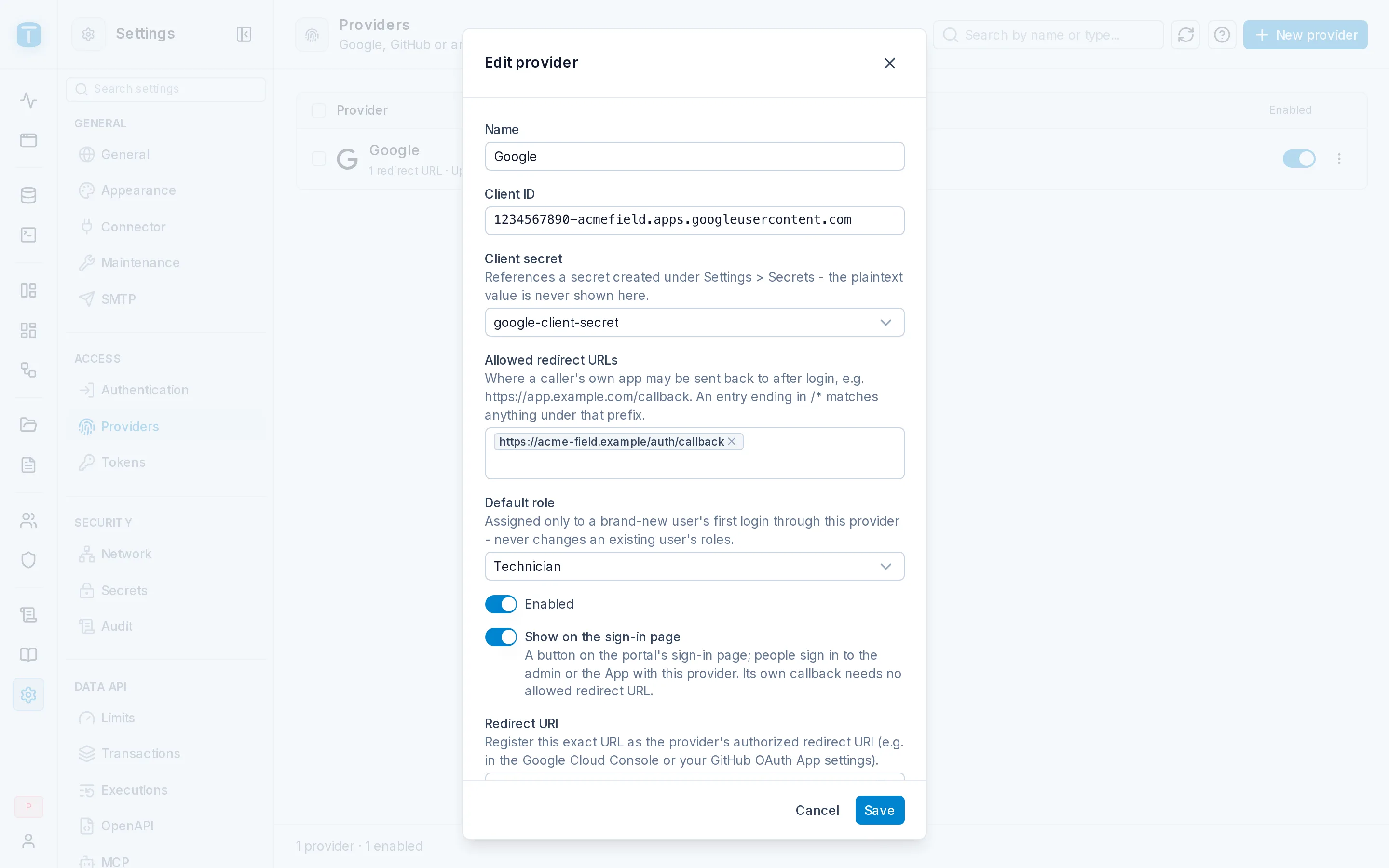
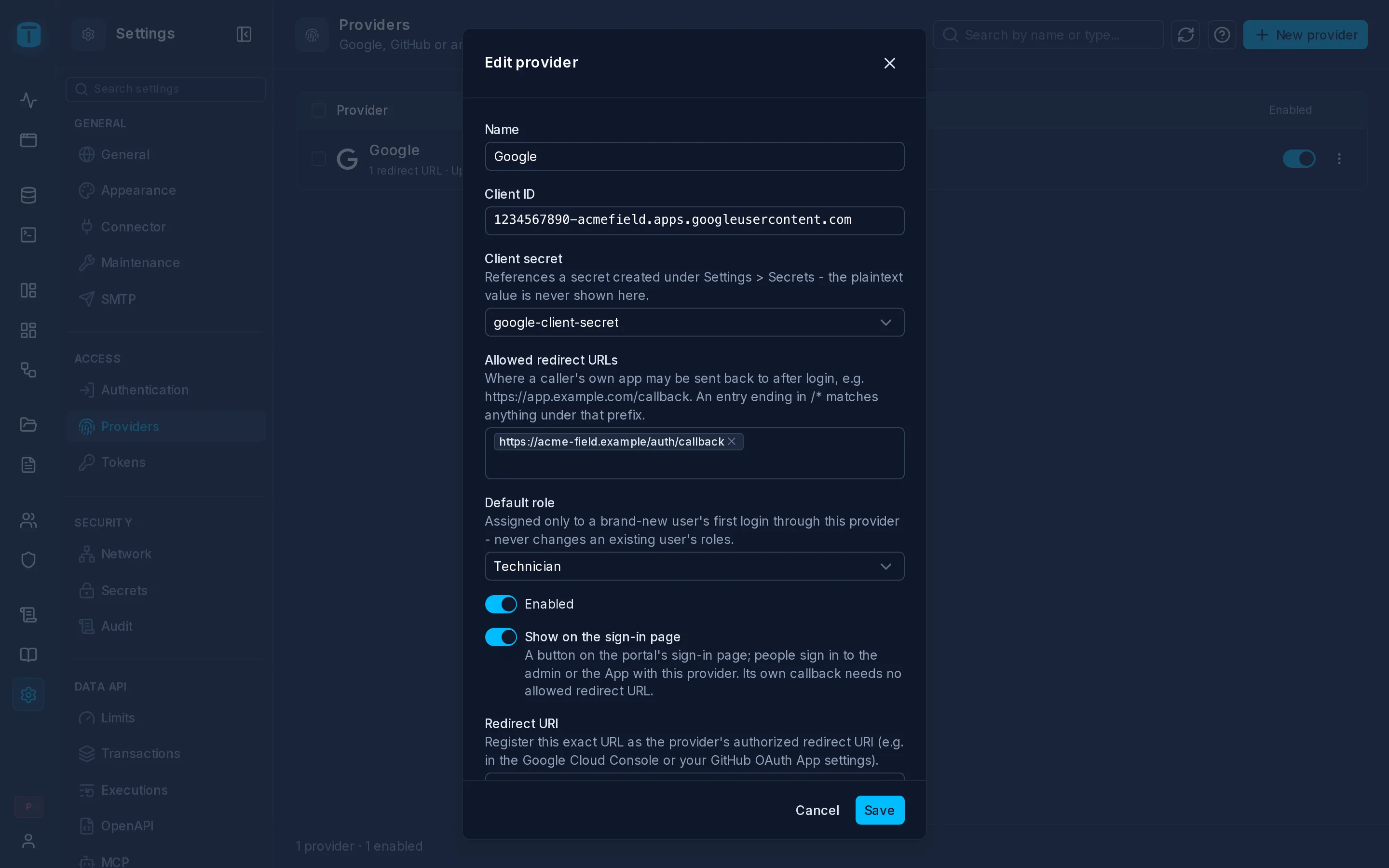
There can be one Google and one GitHub provider enabled at a time, and any number of OIDC providers. Each OIDC provider is addressed by a slug made from its name: "Acme SSO" becomes acme-sso.
On the portal's sign-in page
With Show on the sign-in page on, the portal's sign-in page has a Continue with {name} button for the provider, under the email and password. With more than three such providers, a single Sign in with… button lists them. Signing in this way follows the same rules as a password: the account needs a role with admin or app access, and then lands where its access opens. The portal's own return page needs no entry in the allowed redirect URLs.
The sign-in flow
An application starts the flow by sending the browser to:
GET /api/auth/oauth/{provider}?redirect_to=https://app.acme-field.example/after-login
TotalBase sends the user to the provider (with PKCE and, for Google and OIDC, a nonce), checks the answer, signs the user in, and returns the browser to redirect_to with the result in the URL fragment:
https://app.acme-field.example/after-login#token=<session token>
https://app.acme-field.example/after-login#error=access_denied
Redirect allowlist
redirect_to must match one of the provider's allowed redirect URLs: exactly, or under a prefix ending in /*. A provider with no allowed URLs can't complete a sign-in. This is deliberate, so a session token is never handed to an address you didn't approve.
How accounts are linked
When someone signs in through a provider, TotalBase finds their account in this order:
- Already linked: the provider's user id was linked before, so that account signs in.
- Same verified email: the provider says the email is verified and an account has it, so the provider is linked to that account.
- New account: a new account without a password is created, with the provider's default role if one is set.
An existing account's roles are never changed by signing in. An account that couldn't sign in with a password (inactive, locked or a system account) can't sign in through a provider either. A provider that doesn't share an email can't create an account.
A first sign-in also fills in the user's avatar from the provider, if they don't have one.
Restricting who gets in
Signing in creates an account, but access comes from roles. A new account without a role is created, but its sign-in ends with #error=access_denied, because it has no API access. It can sign in once someone assigns a role. For a company directory (an OIDC provider only your staff can use), set a default role that has API access. For a public provider such as Google, leave it empty and assign roles by hand, or invite people first: their invitation creates the account, and signing in with Google then links to it by email.
Errors returned to the redirect
| Fragment | Means |
|---|---|
#token=... | signed in |
#error=access_denied | the account can't sign in this way: no API access (no admin or app access, from the sign-in page), inactive, locked, or a system account |
#error=email_required | the provider didn't share an email |
#error=email_not_verified | email verification is required and the address isn't verified |
Tokens
Settings › Access › Tokens
Tokens sets the defaults for personal API tokens. The tokens themselves are listed in Users › API tokens and each user's My account › Tokens.
| Setting | Key | Default | Range | |
|---|---|---|---|---|
| Default expiry | api_keys.default_ttl_days | 365 days | ≥ 1 | For a token created without its own expiry |
| Rotation warning window | api_keys.rotation_warning_days | 30 days | ≥ 0 | A token this close to expiring is flagged expiring |
| Keep ended tokens | api_keys.purge_after_days | 30 days | 0-3650 | Revoked and expired tokens are deleted after this. 0: forever. Deactivated tokens are kept |