

Files
Editing Files
Edit a text file, or resize, crop and convert an image.
In the admin: Files › a file › Edit
A file's details offer Edit for text files and images, to users who may update the file.
Text files
Plain text, Markdown, HTML, CSS, JavaScript, JSON, XML, YAML, SQL, CSV, logs and configuration files open in a code editor with syntax highlighting, undo and redo, and word wrap. Save replaces the file's content.
Images
The image editor works on a copy: originals are never modified until you choose to save.
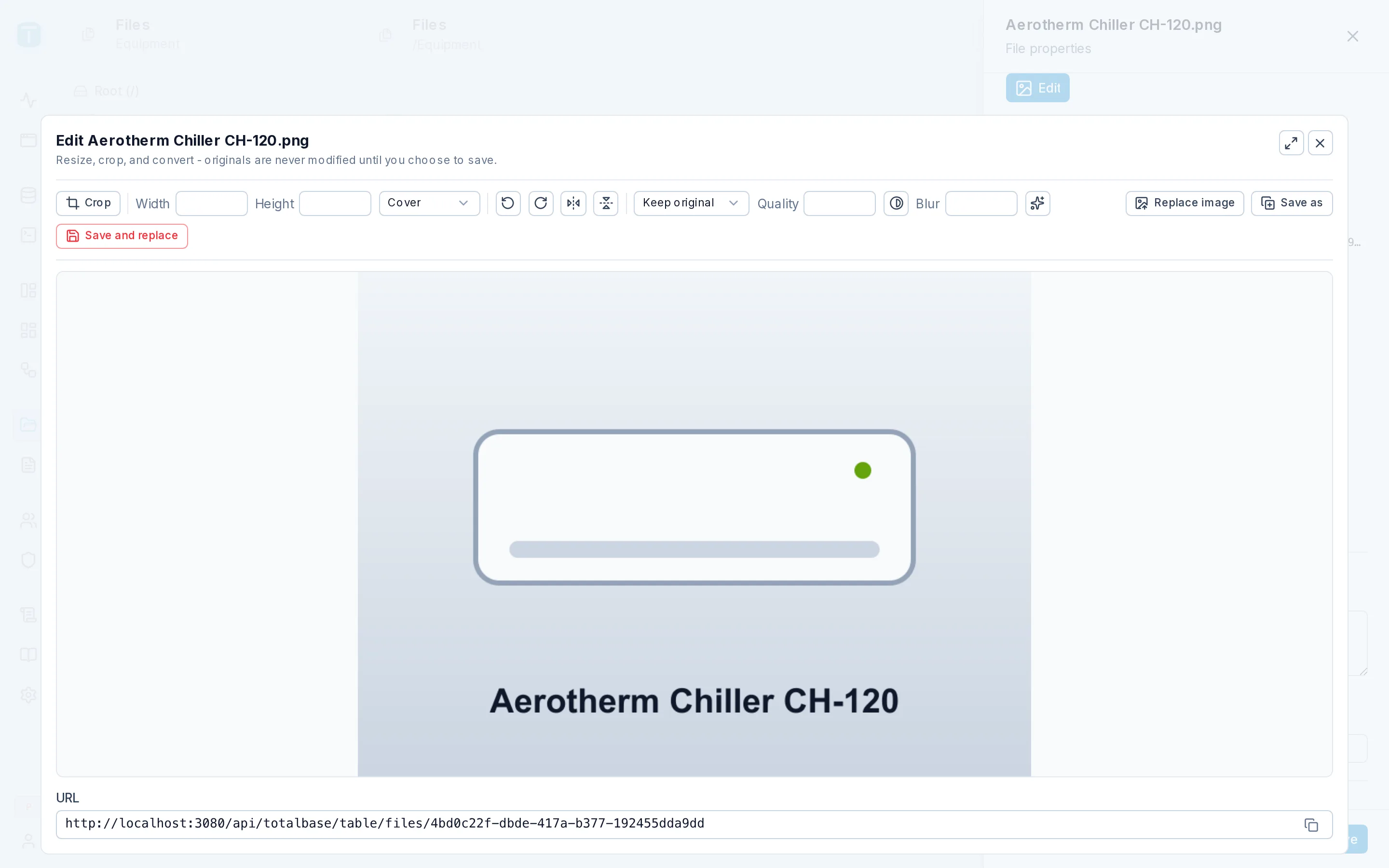
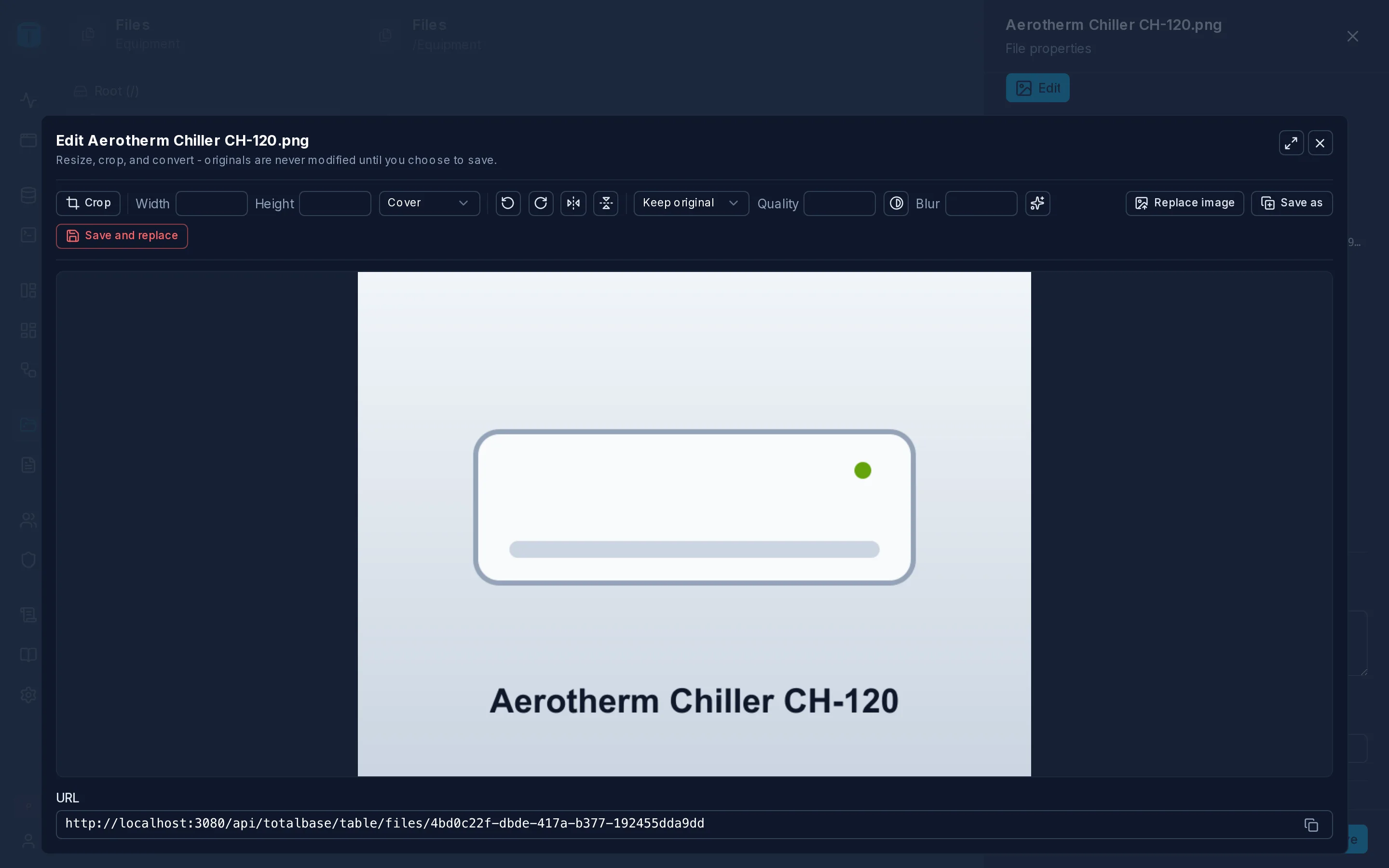
| Control | |
|---|---|
| Crop | Draw the area to keep, then Apply crop |
| Width, Height and fit | Cover, Contain or Inside |
| Rotate and flip | Rotate left 90°, Rotate right 90°, Flip horizontal, Flip vertical |
| Format | Keep original, JPEG, PNG, WebP or AVIF, with Quality |
| Effects | Grayscale, Blur, Sharpen |
The preview is the result of an image transformation, and the URL field shows that transformation's address, with Copy URL. The URL works without signing in only for a public file.
Then:
- Save as creates a new file with the edited image (name (edited).ext by default). The original stays as it was.
- Save and replace overwrites the original's content with the edited version.
- Replace image replaces the content with another image from your computer.
Overwriting asks you to tick Confirm: it can't be undone. Every column pointing at the file shows the new content.
Next steps
- Image transformations: the same edits, by URL.